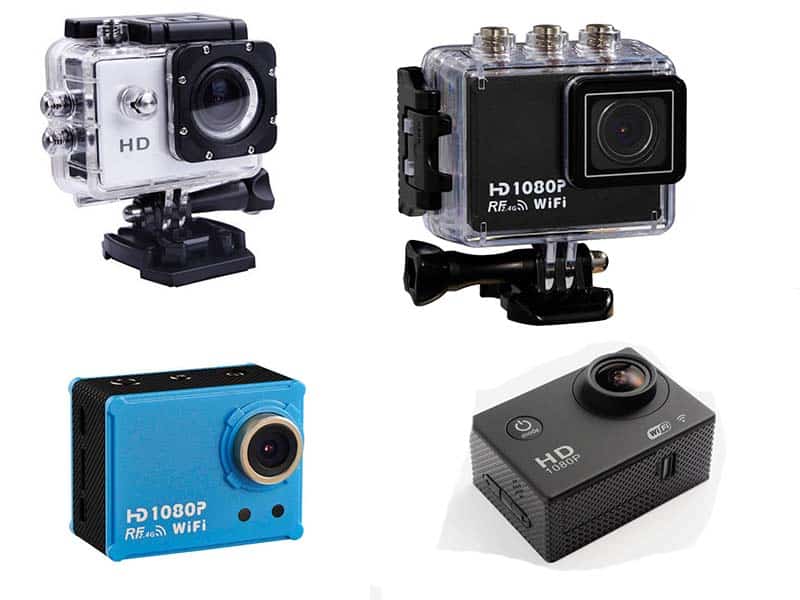
Question: Can you buy a 4K action camera for under USD $40? Answer: Camera yes, 4K no.
This is the XDV 4K Sports Camera. It’s sold by the Chinese online seller as the V3 4K WiFi Sport Camera. Both “XDV” and “V3” are simply convenient names for a generic action camera whose true company name is unknown. V3 is the model name of the image processor. It’s just another of the many generic Chinese action cameras sold online.
This review is broken down into several sections. Click on the title below to go to that page.
Our World is blessed with an abundance of life-supporting water. We highlight the water importance in every way, and as an everyday theme, it rapidly grows. The wish to see what all hides underwater is ancient, but the ability to bring out visual records from our “inner space” became possible only relatively recently.
Our visual recording devices are created for use in the air. Their optical, mechanical and electrical components must have air around them to work properly. So we encase a normal camera in an artificial “air bubble” to make sure it will operate in water. Underwater housings and bodies of amphibious cameras are just that: air bubbles for our mechanisms to safely work within.
There are two main types of underwater photo- and video-graphing devices, both becoming ever cheaper by dint of standardizations and mass-production.
Schematic view of typical Action Camera Case’s sealing
So-called amphibious cameras can be used in the air and in the water. For now, these are somewhat depth-limited, since their “pocketability” form factor sets limits to their pressure resistance. For divers which normally go deeper, or for people who do not need to photograph underwater very often, underwater camera housings may present a better solution. Majority of action cameras nowadays belong into this class. There are other systems where cameras work in liquid-filled volume so as to be near impervious to great pressures. Outstanding technology, but oh boy, beware the price! It puts those way out of our scope here.
In order to understand the watertighting which is the most important feature of such cameras and housings, let’s see what a watertighting system does, and how its proper working order should be maintained. Whatever the need, whatever type of underwater camera is “better”, its air bubble has to remain dependably safe. These simple drawings show how it all works.
Push and rotating command buttons, sealed by double o-rings
All cameras and u/w casings have to be opened to access some elements: batteries, contacts or memory cards. Their doors, covers and hatches must be opened and closed many times without compromising their ability to properly reseal the opening.
Manufacturers are trying to construct these accessing points as simple as possible for the user to operate, but some of those solutions are not as safe as can be for our air bubble contents! Sometimes those extremely flimsy aprons, scratch-sensitive ridges and rubber covers are easily damaged, and then our camera swamps and drowns, together with the joy of underwater picture-taking! Manufacturers which employ o-ring sealings delegate some maintenance to the user, but offer more safety to the cameras, because among all the watertighting means known, the o-ring principle works the best.
Three most common o-ring applications in various casings
An o-ring is a self explaining name. It is made of perbunan (aka nitrile butadiene rubber, most commonly truncated to NBR or simply nitrile), neoprene or silicone compound material. The drawings here show it as a fat black dot.
To work properly, the round o-ring has to lie in the groove which is square in cross-cut. Such groove is usually provided either in the body of the casing, or in the cover that seals it. Usually the three sides of groove square belong to one part, while the remaining fourth side is formed by the closed second part.
An exception is seen in the Ikelite watertight box cross-cut, where the closed cover and the box form the three sides of the square o-ring seat, while the fourth is open to the water and pressure of the ambient. While all the other sealing types provide fixed closure where only o-ring moves to adjust itself under water pressure, the Ikelite type uses water pressure to progressively push down the cover onto the o-ring, so as to form an even more solid seal.
This type of sealing does its work equally well as the other o-ring principles shown, but the better part is in the ease of Ikelite’s o-ring removal and maintenance.
A small Action Camera with DIY flotation bracelet
O-rings move and deform under ambiental pressure. So these wedge themselves in the corner open to the inner, lesser pressure. To enable it to move, o-ring and its groove must be slippery. Lubricant adds nothing to actual watertighting but many people will overgrease, thinking “the more the better” – which is dangerously wrong!
Properly greased o-ring is just grease-shiny – nothing more. Surplus grease collects sand, hair and salt crystals, which may effectively break the sealing and let the water where it doesn’t belong.
An adequate grease must be used. Depending upon o-ring material, manufacturers may suggest their optimal kind of lubricant. If there are no special suggestions, you can use clear household silicone grease.
To remove it for cleaning and greasing purposes, the easiest way is to slide (with two fingers) an o-ring along its groove toward one side, until it pops out. After cleaning it first, lightly grease a q-tip and run it all around the groove. Nothing but a thin film of grease should remain. Lubricate o-ring by pulling it trough greasy fingers.
Carefully put the o-ring back into the groove – and that’s all the maintenance it requires! If you don’t plan to use your camera casing for longer time, remove all (maintenance-accessible) o-rings and save them separately, best lying flat within a zip-loc bag, to retain their form.
Prior to next use, just clean and re-grease as described. If you take care of your camera or a casing and its sealing elements, these will serve you long and well.
*
UPDATE: Recently I had a chance to review some action cameras where I have found yet another variation of underwater encasement gaskets! The difference is not big, but enough to cause a “think or thwim” situation.
On the good side, the new gaskets are more pliable; made of some different material that appears like a stronger version of household silicone sealant. That’s the good news, insofar as the gasket principle can’t possibly be as efficient as an o-ring; still it is an improvement. Of sorts.
Bad news is, these gaskets were not symmetrical in cross-cut! That means, one could easily remove them for cleaning – and inadvertently put them back into their groove the wrong way around! Such an error could result in its loss of efficiency, and that could, in turn, let the water into the encasement to play merry havoc with power and electronics. That we have paid for, but no Warranty will replace (water ingress is always user’s fault)!
This puts another caveat before the users. Prior to any servicing of the action camera casing, please make sure you check whether the gasket around the main hatch looks symmetrical in its cross-cut. If in any doubt about this, do the following:
Note which side of the hatch / gasket goes into the casing first.
Using two fingers, carefully slide the gasket up along its groove until it pops out of the upper groove side.
Apply a waterproof marker to colorsign the spot at the gasket rim that first enters the casing.
Now you know which side of the gasket goes where, and there is no chance to replace it in the wrong way.
Occasionally renew the mark if it gets washed off. You might also mark the groove in the same place…
Anyway, I keep on hoping the Manufacturers will eventually see the light soon and all their funny whachamacallit rubber thingies will soon(est) be replaced with o-rings. Aside from reliability, it would also make the which-side-which-way problem gone. Until that happens, let’s better be overcautious – and keep our cameras dry and working!
*
Taking photos deep under the sea
Keeping Cameras Dry
Sometimes you’ll hear people complain that their newly bought underwater camera delivers fogged-over images when first used in water. At other times, some cameras sealed against water make perfectly clear photos, and then all of a sudden their lenses and monitors inexplicably mist over from the inside, usually when they go from the warm environment to cold outdoors or into the water. In all cases, the experience results in frustration.
Some even returned their camera for the very reason, or replaced it with another model which then develops the same problem. It’s circumstances, not the camera!
If an amphibious camera was assembled in humid environment, it might have retained the moisture, since its sealings will keep that assembly line air within. The same can occur with normal cameras when these are enclosed in watertight casings, such as our action cams. There are ways to have the insides of your camera and waterproof casing dry. The most obvious are the drying tabs which most manufacturers sell, but there are other ways, sometimes a lot cheaper too.
Some materials, called desiccants, have the ability to collect moisture from ambiental air. The most popular among those is Silica-gel, its crystals packed in porous paper-like bags. Such packs vary; from several grams to kilogram sizes.
Smallish packages can be left in the closed camera battery chamber overnight. When you replace your battery the next day, you can expect the inside of the camera to be as dry as can be. And if your waterproof camera casing has sufficient room between the cam and the casing (where the desiccant pack can’t interfere with camera functions), simply keep it within. This will make sure your camera and insides of the casing won’t fog over when you dive.
Silica-gel can be regenerated by heating, either in the oven or in a small pot where you hang it so that the bags do not touch the pot sides. Just lay a wire across the pot, and hang the Silica-gel packages from it by paper clips. Heat up the pot and dry the packs for half an hour or so to get rid of accumulated moisture. Keep the regenerated bags in an airtight container until you need to use them again.
Lake crab preparing for defense from the approaching camera
Small action cameras have very tight space between the cam and waterproof casing, tighter than the size of Silica-gel crystals, and you can’t fit even the smallest desiccant pack within. So you’ll need another approach.
You know those tubular containers of vitamin tablets which are dropped into a glass of water to make sparkling vitamin drinks? There is non-toxic Silica-gel “sand” under such tube plug paper seal. If you carefully replace tea in a teabag with this “sand”, you get one very slim package which can be squeezed alongside the action cam. Just be careful not to spill the fine granules all over the camera – it could be quite hard to clean it out! This desiccant is regenerated in the same way as described above. Be careful, though: teabag material burns!
Yet another way to get rid of moisture is to enclose the cam (with all hatches open or removed) in some airtight container together with crushed wads of cheapest newspaper. This is cheap and simple, and for small cameras one can use an empty resealable Nescafe tin can as an airtight space. Newspaper is very hygroscopic, and typical old-style “rag” is the best. It can collect the smallest traces of moisture overnight.
Common rice works too, but take care the rice dust does not get inside the camera. To ensure this, remove or open all camera hatches, then wrap the cam in newspaper. Put it into the airtight container, pour rice over everything, close tightly and leave overnight. Then carefully remove rice, unwrap the cam, inspect for dust. Meticulously clean it, especially the sealing parts and surfaces.
You can use this rice later to scare up some meal, too; its role of desiccant didn’t change it in any way! Another material to keep the air around the camera in its casing dry is the ole blotter! Although majority of folks nowadays use keyboards instead of pen and ink, blotters still exist. Play with blotter paper and scissors to create thin, eficacious moisture removers, made to measure just for your specific action cam casing.
Last but not least, there’s common tissue paper, of course. To re-dry for the next use, just keep paper pieces in the warm air streaming from your computer. Keep all dry desiccant pieces in airtight Zip-loc until next use.
Another way to grip a small camera while in swimming position
Flooded Camera: What To Do?
First, immediately remove the battery and memory card. Most memory cards are waterproof, so wipe them off with tissue, let dry and maybe the contents will still be readable. Connect dried card to the computer via card reader; don’t risk the memory card slot if your machine has it – card readers are cheaper if the card contacts are shorted or something.
Also, let the battery dry thoroughly for at least 24 hours. Li-ion batteries can spontaneously catch fire if something is not in order, so be aware of where and how to perform next test-charge. Putting the charger and dried-up battery on ceramic plate and keeping an eye on it for the whole duration of charging is good precaution thinking!
More bad news: water in the camera is never covered in any Warranty.
It is always regarded as user’s error. And expenditure. So you are left with three solutions.
One solution is, let your service repair the camera for you. Sending the camera to the service, keep the camera wet. If it was drowned in seawater, do not let it dry as this will complicate things. Wash the camera best you can to remove salt from its innards.
Then wrap it in wet cloth, put the bundle in watertight container and pack the whole so that it can stand the postal transport to the service. Call the service to announce it coming, explain the problem. Include some written explanation of the circumstances and what you did to remedy the situation.
Find out if the camera repairing costs are sensible! Sometimes it will be simpler and cheaper to buy new equipment. That would then be the solution #2.
Third solution is to try and repair the damage yourself if you feel you could do it. Or maybe delegate the honors to a friend who is handy in tackling such tasks. Your camera Warranty is off anyway, and whatever you do there will be a price to pay, so what can you lose?
But do read on. Perhaps what follows might help you to avoid or decide things…
Camera made floatable by fishing net floats turned into wrist strap
Horror Story 1
After a dive we were sitting in the garden, drying cameras and preparing to develop the films. Along comes one of our diving buddies, says “I still have some air in the tank, let me go and expose one more roll…” As our E-6 chemicals are one-time-use only, this made sense; two rolls in the bath spiral for the price of one.
He grabs a Nikonos III, loads a roll of film, and dives in the shallow bay in front of the house. Several minutes later he’s out like a shot and shows us the camera. Brown water sloshes around in the $1400 lens port! In his hurry, he plain forgot to plug the flash sync cable contact on the camera underside, and the sea was invited inside to play!
Imagine the atmosphere of taking the camera AND lens apart, washing out every tiny screw and spring and lever and aperture leaves and lens elements and… I shudder even thinking about doing this ever again!
We had to be quick about it as no parts within the camera are corrosion-resistant. Seems like Lady Fortune was at our side, for when we finally put it all back together and re-lubricated all moving parts, everything worked as before. And there were no surplus parts around, too!
MORAL OF THE STORY: Never hurry when you clean, set-up, or prepare your gear!
Wide-angle theme: swarm of fish circling in the lake reed forest
Horror story 2
The scene is an Underwater Photography Competition that takes two days. On the first day, everyone photo-hunts fishes; on the second day the theme is free.
One of diving competitor buddies (yes I know, but in diving no adversary is an enemy) …he scrambles out of the sea and his Nikon SLR in underwater housing is full of that telltale brown brine which comes from washed off film layers. And his facial expression looks even worse, as you can imagine. The $4000 plus system is DOA and he sure ain’t smiling!
Used to this (due to our Horror Story #1 experience), my buddy and me first prepare a solution from 1 liter of distilled water and 1 liter of pure alcohol (isopropyl). Since water and alcohol mix inter-molecularly, the total volume is less than two liters. This is an excellent washing and cleaning liquid; best first aid in such cases. We take the camera apart and wash everything in the mixture. The evaporating alcohol takes water out of every nook and cranny, and washed gear appears clean and dry.
So why did that underwater casing leak? We found out it was never serviced after the previous dive. Our friend admitted he just left it unserviced, postponing it until he forgot about it. In the meantime the sand particles, sea salt and biological matter had dried solid on all sealing points. It was enough to turn pleasure into a catastrophy.
Long story short, we managed to save the camera and the next day our friend was able to compete.
But that evening, our dinner and wine was on him!
MORAL OF THE STORY: Never enter the water with your equipment unserviced!
Portrait of a watersnake (Natrix tessellata) in the reed forest
Horror story 3.
One of my two amphibious cameras let some water in during an underwater swim. The reason was the camera’s USB port watertighting that is sealed other than by classically dependable o-rings. I was lucky it happened in the lake, freshwater being far less corrosive than brine!
To be fair, it works well as long as both the rubber seal and its seat are absolutely clean and free of any obstacles. This is every camera’s weak spot. Even a hair or a grain of sand there is enough for a seal to fail!
First I had to decide whether to try and salvage the camera myself as the speedy reaction is essential, or to send the camera to the service. Sending takes time, and I did not want to risk internal corrosion.
So I removed the lens port, opened both hatches and did my best to get rid of the water (and the Warranty). I dried the battery and memory card as thoroughly as possible. Then I force-dried the camera innards by ingeniously connecting the hair dryer to it.
Drying the flooded camera. Use only cold air – never switch on the heater!
After putting the camera back together without battery and memory card, I carried it several times down to its rated maximum depth of 10 meters. Checked to find any signs of water ingress. Finding none, I re-inserted the battery and memory card. I was very lucky; everything worked as before.
So I have just once been careless enough not to check the sealing for obstacles before putting the camera underwater. And once was enough! Hopefully, should you follow the advices given, you may never have to experience anything similar.
MORAL OF THE STORY: Even shoemakers sometimes have a hole in the sole!
Thanks for having the patience to read through all this. I hope it saves you from some serious trouble. Enjoy your work and have a Good Light!
ThiEYE T5e action camera comes in an elegant and sturdy black box with silver metallic inscription. Therein, in two layers of black foam is the cam in its waterproof casing, placed alongside another box which contains one rotating buckle, two Li-ion batteries, a micro USB cable, two double-sided adhesive stickers, and a wiping cloth. There is also a small Quick-start Guide booklet.
The clear plastic underwater casing appears like any other action cam housing. Its port and sealing / locking elements and the way its command buttons are seated makes it pretty much standard nowadays. Actually, there is an impression that one single manufacturer makes those water and pressure-proof cases for all action cams. Of course, there is a difference in dimensions, placement of commands, and its pressure resistance.
T5e casing should withstand depths to 60 meters (7 Bar).
But when you take the camera out of its casing, the feeling of manufacturing quality is more prominent. The camera is quite small; 61mm wide, 42mm high, and 23 mm deep (body) or 33mm (body + lens). There is no “plasticky” impression, and the cam feels neat, sturdy and safe in the hand, thanks to its body texture (design of which hints at “easy-cleaning” idea).
Someone at ThiEYE has a nicely developed sense for detail! Many inexpensive cams lack certain manufacturing finesse; not this one. Even the battery cover on the underside is hinged and spring-loaded; not merely a snap-on afterthought.
It engages slidewise, but has an additional lock which makes it impossible to accidentally open. Another not so common detail is a standard ¼” metal tripod bush, placed properly under the cam’s optical axis. This does away with the need for an extra skeletal accessory that some other cams must have in order to connect to the tripod.
The left hand side of the cam is reserved for a recessed area with microSD memory card (preferably UHS-I U3 Card up to 64GB) spring-locking slot, and two ports; for a micro USB cable (data transfer & charging) and for D-type micro HDMI (cable not included). This area looks like it should have a cover, as there is even a nail notch along the rim, but my sample came without it.
USB Port
Micro SD card slot
HDMI port
LCD Screen
The command layout is logical and self-intuitive. On/Off button is in the front, the Start/Stop on the top surface, while two more on the right hand side are used to browse through the menu, operating mode and setup. While pressing of those commands feels crisp and precise with clearly defined click, when the cam is in its protective casing the buttons work against the sealings and biased springs, which requires more pressing force. It can be somewhat bettered though… more about this later, related to the casing specifics.
ThiEYE T5E Specification
[go_pricing id=”t5e_thieye”]
Overview
The cam utilizes Ambarella A12S processor & Sony IMX117 sensor to record high image quality up to 4K. The sensor sits behind a bright 8-element f/2.8 lens which has a sapphire glass front, resistant to scratches.
Its 3840×2160 Ultra HD 4K/30fps is four times the 1080P. For slow motion, T5e action cam can record videos at speeds up to 240fps, that is 720P/240fps, or 1080P/120fps.
Camera can make 16MP (12 megapixels is maximum native resolution) photos using a 170° super wide-angle 7G lens, which takes in huge range of landscape. 2″ / 5cm LCD screen helps with previewing video and setting up the camera.
IPX8 waterproof casing protects the camera from dust and shock, and shields the camera down to depths of 197’/ 60 m, so that majority of divers and outdoor sports people can make wide range of underwater recording.
The casing connects via standard friction swivel to proprietary 360° rotating buckle for flexible adjustment of shooting angles. Similar mounts can be found in Dazzne cameras.
Rotating mechanism in the buckle is sturdy enough to keep the camera stable against vibration. There is a range of accessories and connectors for fixing the cam to persons and objects; depending upon user’s wishes.
NOTE: As opposed to some other cameras (for instance, my SJCAM M10+), the ThiEYE T5e in its waterproof casing and without any mounting accessory maintains negative buoyancy, meaning IT SINKS. Naturally, any added mounting element will make it sink even quicker.
Bearing that in mind, it would be practical to add some means of flotation to it – even while just riding in a boat. Otherwise, one could accidentally drop the camera overboard just to sadly watch it sink out of sight and possession, perchance also taking some nice memories on its card with it! Added flotation means can save one from such disasters.
For diving and snorkeling purposes it would also be sensible to either acquire a proprietary floating handle, or improvise a wrist strap with 3-4 champagne-corks-worth of flotation elements. Experiment a little with the camera and materials at hand to construct this.
I have made me a sort of wrist bracelet from small fishing net floating “donuts” lined on a piece of paracord which has a quick-release snap to attach it to any of my watergoing cameras. It is simple, cheap and effective even in deep dives, as the “donuts” do not change volume (e.g. flotation ability) down to -400 meters.
Another good thing with this arrangement is that the donut bracelet rolls off your wrist in a second – so you can free yourself of the camera in an emergency!
Two 1100mAh 3.7V lithium-ion rechargeable batteries come in the package, each records up to 70 minutes of 4K/30fps video or 100 minutes of 1080P/60fps video on a single charge. ThiEYE T5e supports up to 64G high speed class 10 or UHS-I U3 micro SD cards.
There is a ThiEYE HD App for remote control, edit and sharing. It connects your devices either via Bluetooth or WiFi. Using the app, you can edit the videos and add effects, music and transitions.
Quick start guide
This booklet is composed in eight languages, and has eight pages of content per language, listing the parts and most basic procedures, actually guiding you through the camera parts and how to access the camera Menu. Once in the Menu, you’re on your own.
For people which have no prior experience with cameras, some terms and acronyms can be quite a mystery, more so since there is no detailed .pdf manual to download and to learn about all of the camera’s possibilities and options. In my humble opinion, such Manual should be available.
Truth be said, there is such a manual for ThiEYE i60 camera, containing well-detailed explanations. Unfortunately nothing similar exists as yet for T5 models.
What’s inside the box?
1x camera
1x waterproof housing
2x 1100mAh Battery
1x quick startup guide
1x wiper
1x accessories pack
First Attempt
While waiting for the cam to arrive, I read what I could find about it, got me a SanDisk Ultra 32GB (Class 10) micro memory card for the cam, and also downloaded the latest firmware from Thieye website (link).
So upon the camera arrival, first thing to do was put the batteries to charging. The dedicated charger is an optional extra, so I charged the batteries one after another in the camera. Fortunately, my phone charger has just adequate charging characteristics.
The batteries can also be charged off the computer’s USB, but in both cases the camera will be unusable as long as it is leashed to the charging spot. For those folks which use their action cams extensively it pays to invest in a separate charger where spare batteries can be topped without putting the cam out of use.
After browsing through the camera’s (well conceived) menu, so as to become familiar with where is what, I then set to upgrade its firmware.
Firmware RAR container unpacks the (.bin) upgrade file and (.txt) Instructions for Firmware Upgrade. Instructions are clearly and correctly written in English, unlike many that I have seen. The procedure was quite simple and went without a hitch.
Video Quality
As already stated, ThiEYE T5e can record 3840×2160 Ultra HD 4K/30fps, through various 3:4 and 16:9 formats. For slow motion, T5e can record videos at speeds up to 240fps, that is 720P/240fps, or 1080P/120fps. It can also make Timelapse videos, which consists of a series of photos made at intervals from 1 thru 60 sec which are then turned into video file replayed at standard speed. This way one can record long stretches of time / distance in short time, adding variety to presentation.
There is an electronic image stabilisation system (EIS) which works by dynamically aligning the recorded pixels over the sensor. There has to be free sensor area for it, so EIS needs certain marginal space. That’s why EIS only works with image size up to 1080px. An action cam can’t really have moveable parts like hardware stabilisators, as such wouldn’t last long in rough usage the action cams are created for, so EIS will have to be sufficient.
Static camera renders nice vistas, though convoluted due to its fixed wide-angle lens but due to this also warrants great depth of field.
An example of automatically created Timelapse Video can be found in the video below.
Of course, this can also be made with cam’s Photo Timelapse function during your post-processing, where you decide to use the photos for either video or stacked-photo presentation. The latter then appears as if made with long exposure.
In normal daylight there is not much of the rolling shutter effect. If your scene does not have much of straight vertical lines, this won’t be too disturbing.
Night records do need somewhat more light to discern the scenery. The camera’s 1600 ISO isn’t much, even when boosted by the cam’s max EV of +3, but this boost might help. Lightsources and their immediate surroundings will show, such as Moon and certain reflex from the waters, but not much else. Depending upon your circumstances it might look better than this
Expect a lot more from dynamic scenes, such as
Interestingly, the ability to record with the camera upside down is missing, which somewhat complicates the mounting under or beside the car rearview mirror. Perhaps the manufacturer’s idea was that this is easily done in post-production? Still, I have sent mail to ThiEYE, suggesting that this simple function be added within the next Firmware update, so maybe they will oblige.
While at that, I have also suggested that the cam’s Down button be used for deliberate switching the monitor On / Off in the same way its Up button works for the camera microphone. There is a time-delayed option to switch the monitor off (to save power), but no way to switch it on again without interrupting the recording, so the Down button would be just right for this. Maybe the next Firmware will contain that as well.
Photo Quality
ThiEYE photo modes offer various image sizes and resolutions throughout its range of 16MP (interpolated from its 12MP sensor) to 3MP. Quality can be dialled between Superfine, Fine and Normal.
There is also a choice of scene modes: Normal, Flash, Night, Sports, Landscape, Portrait and Sunset. Effects include Normal (meaning no effect), Art, Sepia, Negative, B&W, Vivid, and 70Film (this is supposed to offer the „film look“ of the seventies).
Camera offers different effects to choose from
However, the camera’s Auto settings joust rather well with various kinds of lighting. Its wide-agle lens gathers lots of light, and not-too-picky users might find the quality sufficient for majority of scenes.
Taken indoors with no other lightIndoors with combined lightsources, daylight + fluorescent + firePhotographed outside, with the horizon about the middle heightAn example of image convolution (distortion) that comes from wide angle opticsVivid effect
A night photo at Auto-everything setting as it appears straight out of a camera:
… but it can be somewhat bettered in post-processing
Sound Quality
ThiEYE T5e records in Mono only. Its microphone is placed on top surface, right above the lens (visible as two slots), while the small speaker (visible as three slots) is to the left of the lens.
The Microphone Volume Menu allows the settings of OFF (no sound), and then from 50% to 100% in 10% increments. It has to be experimented with to get an idea what the results will be, but then it will always depend upon the actual situation.
I’d suggest, start with 80% and see what’s to hear. Then set the acuity to your liking.
Of course, expect the sound to be a tad muffled when the camera is sealed in its protective case, so you might have to tweak the audio record in post-production, mainly to get the higher frequency range more acute. There is an optionally available slotted back door for the protective housing which warrants better sound acquisition. But then, rain, dust and smoke are also invited in along with the soundwaves, so this option requires careful choice of circumstances.
My test was made at 80% microphone level recording the natural sound with some added tones, both with and without the casing, so you can hear the difference. Let me just say that the camera’s audio performance is satisfactory, which is another good point for the buyer.
ThiEYE T5e Battery Test
I have alternatively tested both batteries that came with the camera. Good news right away: there was no significant difference, and both batteries performed within two minutes.
All tests were made at room temperature with the camera out of its waterproof casing. Batteries were re-charged in-camera, using NIKON EH-71P charger outputting 1A/5VDC.
The testing was done at settings of highest resolution and also of highest frame-per-second rate. In all tests the monitor and WiFi emitter were constantly set ON, to generate the highest energy spending.
[go_pricing id=”thieyet5e_battery”]
Take these values as anything but guaranteed, since there are variables that influence the tests, such as ambiental temperatures, internal temperatures (recording with or without protective housing), specific chargers, battery production batch, and also taking care to switch on only what is required.
When the battery is depleted, ThiEYE T5e emits a triple warning sound, stops recording, and switches off.
Waterproof Case Care
Outdoors people will use their camera within its protective case. As noted before, the casing command buttons do not respond so crisply to pressing, because you’re pressing against their biased springs, and there are also dry rubber ring seals around the pins. The sluggish button response can be remedied, and here’s how:
You will need WD-40, a small vial, shot glass, or something similar, and a wooden toothpick.
Spray some lubricant gently from the pressurized can of WD-40 into the vial or shot glass. When the propellant evaporates, you have some pure, chemically neutral oil in the vial. Open the waterproof case and locate the commands from the inside. Press the command button in as far as it goes. Use the toothpick to carefully transfer one small droplet of oil to each command button pin. The thing to remember is: use as little lubricant as possible!
Work the button several times and note the difference.
Alternatively you could oil the command button pins from the outside of the casing, but button springs make it more difficult to reach the pin. However, after adding the lubricant and working the command button, use tissue to remove as much of the surplus oil from the area as possible. The trick is not to smear the oil around because it will eventually end up all over the camera, especially where you don’t want any.
Sometimes the camera hatch sealing sticks in opening and closing, which twists the sealing ring. This can dangerously affect the quality of the seal and you risk water ingress. Again, this can be remedied by careful application of little WD-40 or silicone grease.
Do not use any other kind of lubricants, as some can chemically damage the materials of the casing! Lubricants do not seal; these just make sure that sealing elements slide properly to their position. In this sense, silicone grease is preferred for diving purposes, as it does not wash off so easily as oil.
Do it this way:
Open the hatch, remove the cam. Pinch the hatch seal with thumb and forefinger on its left and right side and slide the sealing ring along its groove until it pops out on the hatch top side. Gently remove it from the groove.
Pull the ring through lubricant-greased fingers. Don’t use too much; the ring just needs to appear grease-shiny from all sides. Carefully replace the ring to its groove, making sure it is properly seated. Pass the greased finger along the inner rim of the housing where the seal engages. This will ensure proper seating of all the sealing parts.
Wipe off all lubricant from anywhere on the case so it won’t attract lint, hair and alike. It doesn’t take much dirt to break the seal and let water in, so work carefully.
When you need to take the camera out of wet casing, always wipe it dry first. Even then, remember always to open the casing with the hatch pointing downward (careful: don’t drop the cam). There will be some water in the sealing gap, and that’s the way to keep it from entering the case. If there are droplets along the sealing area of the casing, remove those with dry tissue.
Before re-closing the housing, carefully inspect the sealing surfaces for any dirt. Prior to locking the hatch make sure it is symmetrically and completely pressed closed.
Never touch a camera casing with alcohol, benzene or similar chemical solvents. Wash it closed, using only warm water and non-abrasive cloth. If need be, apply only small quantities of dishwashing gel. Rinse in running water and dry in the shade. Never leave the casing, much less an encased cam, in the sunlight – not even in wintertime!
When you use the camera in the sunlight for long time, such as using its Timelapse function, whether with or without the casing, remember to arrange some shade for it. You can add a piece of cardboard from the cam’s sunny side to keep it from getting too hot (and consequently switch itself off, ruining the recording). DIY shades are the best, if you take care to arrange it so that it shields the cam during the whole recording time; especially shading the lens from direct insolation. Remember that the lens concentrates the sunlight to the sensor, and you don’t want to destroy it.
Following these advice will keep your equipment in good working order for a long time.
I enjoyed working with this cute li’l cam. Its form factor is not revolutionary as it is designed in a way that can be regarded as classic, but it is small and handy. The cam fits easily in any windbreaker pocket, or in the corner of any photo bag. And it works as advertised, which is the best it can, returning good value for your money. I can say it is well worth its price, and thus one safely suggested buy.
Its range of accessories isn’t as wide as some other manufacturers offer, but the basic connecting elements are there. Anyway, it all depends upon what you need. But the camera does have a standard metal ¼” tripod bush which makes it widely applicable.
That being said, a caveat: the accessories that come with the ThiEYE T5e are not entirely compatible with those of other manufacturers! Its quick-release rotating buckle-type connector will not fit the similar mount of, say, a GoPro or SJCAM. It looks similar, but there are certain milimeters of difference there to frustrate. A pity, really. All such cams should have totally compatible mounts by now.
However, the connecting point swivel on the underside of the waterproof casing accepts GoPro / SJCAM counterparts, as long as you use those longer tightening screws. So starting from there you can combine other manufacturers’ camera attaching systems, as per your requirements.
One thing I am missing in this ThiEYE model is the ability to record the inverted image. This means the camera mount has to be under, which is awkward if you use it as a dash cam mounted under your rearview mirror. I have suggested to ThiEYE to add the option of inverting the image to their next firmware, but so far it is still a maybe.
Good things are easy:
Small format
Solidly made
Attractive design
Comprehensive menu.
Satisfactory audio quality
The batteries perform as promised, although only after first two or three chargings the full capacity is achieved.
Audio sensitivity is good, but normally muffled when the camera is within its closed casing, which is to be expected. If the ambiental sound is important, use the camera out of the casing and experiment a tad with the sensitivity setting to find optimal sound recording level.
The camera has a tripod bush right below its optical axis, which allows for correct leading when tripod mounted. So there is no need for additional skeletal mounts: smart decision.
One thing which I see as very important is the company’s Support team. If you have any problem or just a doubt, they will answer quickly and do their best to help with your inquiry. Many other manufacturers would do good to follow such an example.
Not so good things… also easy as there aren’t many:
Accessories are neither plentiful nor diverse; there are only so many ways to mount the camera that come in the box. But there are standalone manufacturers which can supply what is missing, since the protective casing has the same swiveling attachment point as most other cameras of this type. Just take care to choose long screws, so the finger grip can always clear the casing rim.
Audio recording offers only Mono, maybe important for people who prefer Stereo sound.
The camera does not have INVERT PICTURE option (yet).
The ThiEYE web page could do with some redesign, as it has been conceived to promote the new products, while you have to search somewhat to find whether there is a new Firmware for your model. Here and there, the page and other textual information (in English) also needs some minor English corrections.
So far, there is only a Quick Start Guide for this model; both as a booklet and on-site. But considering the large number of options that the camera offers, a full-fledged, detailed User Guide for all ThiEYE camera models should exist. I’d suggest that ThiEYE adds an User’s Guide booklet to the box, and also has it available on their pages as soon as possible. And a chapter about Waterproof Case Care should be an important part of this information!
TOTAL VALUE FOR MONEY: 4/5
I feel confident to regard the T5e as a very good buy. This is augmented by the impression of ThiEYE being a company very interested in advancing their product line and also their relations with consumer horizon. A company to keep Thy Eye upon, so to say!
In this article I ‘ll compare two cameras from SJCam. The first is the M20, one of the smallest SJCam cameras, and the second is their top of the line SJ6 Legend. The M20 is a classic camera, small and nice, whereas the SJ6 seems to be a concentration of technology and performance with its beautiful touchscreen and great design. Let’s see which camera is better!
The number of accessories included with these cameras is the same because SJCam’s great “vice” is that they fill their camera boxes with a huge amount of accessories!
Design and Navigation
Both of these cameras are beautiful with an easy and intuitive design, mostly the SJ6 because it has a bigger screen that’s easier to see and use. Both of them are great in any light condition. The M20 has four buttons: power, shoot and up and down buttons. They are very well built with a good click and nice touch but the SJ6, with it’s touch screen display, has a great advantage because it’s so easy to navigate.
Instead of clicking tons of times to change the settings like a normal camera, with the touch screen you can change a lot of things in just a few seconds. Also the LEDs around the camera are better placed on the SJ6, making them very visible at any angle. In these two aspects the SJ6 is better built than the M20.
Video Quality
As always I like to say that this is the main section because here we can see the differences between these two cameras with a substantial difference of price. They have the same chipset but a different image sensor. The M20 has a SONY sensor whereas the SJ6 has a PANASONIC. Both are great sensors.
As you’ll notice in the following videos the biggest difference between these two videos is the color. Both are absolutely beautiful but the M20 tends toward colder colors and the SJ6 tends toward warmer colors. I don’t want to judge which is better because this is more of a personal preference.
Notice that on the edges of the video or with things in motion generally the SJ6 makes a bad “wake” effect like this:
Also note the amount of details between these two cameras:
The SJ6 almost seems to prune the plants!
Jokes aside, the SJ6 has fewer details. In the far distance they’re mixed with the colors making the image less sharp.
Talking about the night is a completely different situation. The SJ6 transforms itself and beats the M20.
As you can clearly see, there’s a huge difference in quality and noise.
The M20 also has a few problems with frame rates. The 1080p resolution is the only one that is faithful to the specs, but all the other resolutions like 720p at 120fps or 60fps are actually 30fps with quadrupled or doubled frame rates, respectively.
Obviously the SJ6 also has some frame rate issues but “only” with the higher frame rates like 120 and 240fps. Both of them are actually 60fps. Also it was released with a lot of other little problems and bugs but luckily SJCam fixed them to make the camera more enjoyable.
Photo Quality
The photo quality follows the same rules laid down by the video quality. During the daytime they are very good but the M20 has a little bit better quality. At night the SJ6 is a little better, mostly because there’s less noise.
Audio Quality
The audio performance is similar on both cameras. They have good microphones but the M20’s is more sensitive. Neither distorts the audio.
WiFi and App
I always praise the WiFi connection of SJCam cameras. The M20 and SJ6 have the same WiFi and app. What can I say? They work perfectly!
Battery Performance
I’ll let the following table talk for me. In all cases WiFi and the screens were off.
[go_pricing id=”sj6_vs_m20_battery”]
Summary
Both of these two cameras are good. The M20 has some problems like the extremely high noise in dark conditions and a lot of frame rate issues. Also the LEDS are not positioned perfectly but it’s a minor problem. The SJ6 has a beautiful touch screen display, and as I said before it was built gorgeously, but in most situations it’s defeated by her little sister, the M20. It’s not the best thing to say for a camera that claims to be a “Legend”.
There are many differences between these two cameras. Neither the M20 nor the SJ6 is a clear winner because both of them have a number of little problems that prevents one from rising above the other.
M20 Advantages
Good video quality
Good image quality
Good battery life
Small camera
M20 Cons
Too much noise in dark conditions
Problems with the frame rate
SJ6 Advantages
Great Navigation
Good Screen
Good LED design
Better low light performances
SJ6 Cons
Inferior video quality in general compared to M20
Quite high price
In my humble opinion it’s about 50% – 50%. If only the M20 had better night performance it would be the winner.
Here are few stores which sell these two cameras. Check out all the links, since sometimes these stores have special promotions and discounts on both models.
The SJCam SJ6 Legend is one of the newest cameras released by SJCam. It is the first SJCam with a 2-inch touch screen – a novelty which few manufacturers began to implement in their sports cameras. The camera also has its own external microphone sold separately. The camera uses a Novatek 96660 chipset and for the second time for SJCam a Panasonic sensor (MN34120PA, 16MP). Some of you might remember that Panasonic sensor was used in SJ5000+ as well.
The SJ6 slogan says:
“The legend begins today with unrivaled features & performance ”
Well SJCam, let’s see your new product.
Note : You can buy SJ6 Legend here (best deal we found)
Specifications
[go_pricing id=”sj6legend”]
Unboxing
Accessories
As usual, SJCam fills the box with a lot of accessories. Like many other SJCam products, here we find:
Camera
Waterproof case
Plastic frame
Rotating curved mount
Rotating flat mount
1x curved mount
1x flat mount
1x handlebar mount
3x screw mount
1x wire
Wiper
2x stickers
Manual
As always SJCam makes good quality accessories. I never say anything bad about them but this time I have to mention the length of the USB cable. It’s more or less 25cm long and it doesn’t let you properly charge the camera or charge while recording. Personally I use the camera on my car and with this cable I can’t charge it while driving. It could make it difficult to connect with your PC too because the camera is forced to stay literally hanging between the USB port and the floor.
Design and build quality
The design of the SJ6 Legend is just awesome, probably one of the best cameras I’ve ever had. It’s beautiful to the eyes and lovely to the touch. The camera body is completely rubberized to improve grip. On the front we find the lens next to the front screen and the three front LED’s. The feeling of the buttons is perfect, with a good “click” followed by a “beep” sound. With the waterproof case the feeling remains extremely good. This is my first touch screen camera and to be honest I didn’t expected such a high quality screen. I was expecting something inaccurate, with no quality and hard to use. Guess what I found?
I found a phone screen. I’m not kidding, this screen is just like your phone screen: reactive, sharp, fast, beautiful to see and perfectly bright. It was an unexpected surprise to me and probably for all the other skeptical people like me. It also works perfectly at low temperatures. I tried it at -2C° without problems. Also with the waterproof case there are no problems with touch precision.
Furthermore I want to congratulate SJCam for adding lots of lights everywhere. The SJ6 Legend’s LED’s are visible from every angle. They also added a little but very useful thing, the integrated screw mount on the bottom of the camera body, in Yi, YI 4K and Sony FDR-X1000V style. This mount allows you to mount a camera onto a tripod or anything with 1/4″ screw.
What can I say, the body of the SJ6 Legend is good looking and has good quality.
Buttons, lights and ports
1. Shutter button
2. LED
3. Power button/ Switch mode button
4. LED
5. Multiple function LED’s (Power on/WiFi/recording)
6. Lens
7. Menu button
8. Front screen
9. Mic
10. HDMI port
11. SDcard slot
12. USB port
13. Recording LED
14. Charge LED
15. Back Touch Screen
Let me say a couple of words about the USB port on the SJ6 Legend. It’s not the usual micro USB like nearly all other cameras but rather it’s a mini type B USB. You can find it on some of your hard disk drives but it’s very unusual use it on action cameras. Even so, the SJ6 isn’t the only one that has this USB type. Gitup Git 1, Git 2 and the Dazzne P3 also use it. Probably the choice is made in order to use the same port for the external microphone and the charger. It’s also much stronger than the “classic connector” called Micro-B but it remains quite annoying because you must use a different cable.
Menu overview
In common with all SJCam menus the SJ6 Legend’s is easy to use and very intuitive, in particular on this model because it’s possible to drag the menu up and down like a smartphone menu using the touch screen. The interface is almost the same as the Yi 2 4K. Check it out if you want to compare them for yourself!
The menu is divided in two macro sections. The first is the “fast” – quick acess section where you have instant access to all modes of the camera. This consists of:
Video – Record a video
Video Lapse – Shoot a photo every second and automatically create a 30fps video
Slow Rec – Makes a slow motion video automatically
Still – Shoot a photo
Photo lapse – Shoot a photo every 3s/5s/10s/20s
Burst mode – Shoot 3 photos in a row
Video + Photo – Record a video and every 5s/10/30s/60s also shoot a photo
Car mode – Start recording when the camera sees the movement
Underwater – Slight change of colors
The second section has all the options for every mode plus general settings.
Here are all the settings available for every mode:
Audio – Enables or disables the camera audio (On/Off)
Bitrate – Changes the Bitrate (High/Medium/Low)
Burst Mode – Changes the number of the photos in the burst (3/5/10)
Color – Changes the color of the image (Normal/B&W/Retro/Warm/Cool)
Delay Capture – Changes the time between the click and the photo (Off/3s/5s/10s)
Distortion Correction – Adjusts the distortion of the edges of the screen (On/Off)
Double File – Creates the same file twice, one original and one with a lower resolution (On/Off)
EV – Changes the light exposuse (From -2 to +2)
Exposure time – Changes the amount of time the camera captures light (Auto/ 1/30s /1s/2s/5s/10s/30s/60s)
FOV – Field of View (Wide/Middle/Narrow)
Gyro Sensor – Gyroscopic stabilization (On/Off)
Image Size – Size of the photos (16M/14M/12M/10M/8M/5M/3M/2MHD/1.3M/VGA)
Loop Recording – Auto-cutting video setting (Off/3min/5min/10min)
Photo Lapse time – The time between two or more photos (3s/5s/10s/20s)
Power on Record – Automatically start recording when the camera is connected to the power (On/Off)
Quality – Quality of the image (Fine/Normal/Economy)
Sharpness – The clarity of detail in the image (Strong/Normal/Soft)
Slow Motion – Creates an automatic slow motion (-2X/-4X-8X)
Time Stamp – Shows the time on the video (On/Off)
Video File Format – Changes the format of the video (MP4/MOV)
Video Lapse – The time between the photos that will create a video in time lapse (1s/2s/5s/10s/30s/60s)
Volume – The sensibility of the microphone (1/2/3/4/5/6/7/8/9/10)
WDR – A sort of color correction (On/Off)
White Balance – Changes the white balance (Auto/Daylight/Cloudy/Tungsten/Fluorescent)
Language – Changes the language of the camera (Czech/Danish/English/French/German/Hungarian/Italian/Japanese/Korean/Polski/Portuguese/Russian/ Simplified Chinese/Slovak/Spanish/Traditional Chinese)
Date/Time – For setting the date and time of the camera
Format – Formats the memory card
FPV – First Person View. It works with the HDMI and Wifi (On/Off)
TV Mode – NTSC/PAL
Power on Record – Automatically start recording when the camera is turned on (On/Off)
Auto Power Off – A power saving feature that turns off the camera after a period of time (Off/3min/5min/10min)
Keypad Tone – Enable or disable the “beep” sound of the buttons (On/Off)
Screensaver – Automatically turns off the rear screen (Off/30s/1min/3min/5min)
Frequency – (50Hz/60Hz)
Rotate – Rotates video 180° (On/Off)
Logo Watermark – Adds the logo on images (On/Off)
Power on Mode – Allows you to choose the first mode to appear when you turn on the camera
Default Setting – Change all the settings back to the factory settings
Version – The firmware version
SJCam has exaggerated again with the settings just as I noticed when I reviewed their M20 model. Some of them, such as sharpness, bitrate and quality, are simply useless because they don’t change anything on the images.
Video
I appreciate when a manufacturer tells the truth about their product on the product packing. SJCAM wrote that the 4K is interpolated and that’s great! For everyone who doesn’t know, interpolation is the action of literally inventing pixels to reach a higher resolution. However, in doing so there is a big quality loss. If you want go deeper you can find the reasons here but the SJ6 Legend can’t achieve true 4K resolution.
However, the 4K resolution isn’t the only problem because SJCam claimed “120fps” and “240fps” on 720p and VGA resolutions respectively but it’s not true. Luckily this time all the resolutions and frame rates are good except for these two. The first is actually 60fps with doubled frames. The second is 80fps with tripled frames! I’ve never seen something like that before.
Please remember that this camera uses a Panasonic sensor so it’s normal to find quite high quality videos: great colors, very good images and quite good sharpness. But if you use the SJ6 Legend without good lighting, it could be a problem.
Usually an action camera is made to record videos in extreme situations – on a bike, during a run, on the snow, under water. They’re made to capture incredible shots where and when other cameras simply can’t, but with this camera it can be frustrating because with some particular motions scenes are not as detailed as expected. On the other hand it can sometimes be very satisfying.
I found another strange problem. Sometimes, in a totally random situation, the camera makes a completely violet frame, just one. It’s most frequent in dark conditions. There was a similar problem with the Sjcam M10+. Probably it’s a firmware problem but they didn’t fix it with the latest version.
Here’s an example. You can see it at 8 seconds and again in slow motion at 16 seconds:
And this is a frame capture:
The camera makes good videos in daylight but during the night things change. Strangely it can capture light very well even from dim sources but it doesn’t capture the details. During the night it seems constantly blurred. It also halves the frame rate when there is insufficient light. This is common for action cameras but it could be frustrating to set the camera at 60fps and have it record at 30fps just because the camera wants to.
Update: The violet frame rate issue has been fixed in one of the firmware upgrades.
I noticed another strange effect when the camera is facing into the sun. It creates a “glass effect” to compensate for the huge amount of light. This is how it looks in bright light just before the sun hits the lens directly:
And this is how it looks with the sun shining directly on the lens.
In this situation other cameras have different methods to avoid this effect such as decreasing the exposure. In this case I’m not sure if it’s a firmware problem or a hardware problem caused by the lens.
Apart from these problems there is a new feature I’ve never seen in any other Chinese action camera. I’m talking about the 1080p Super. What is it? It’s a copy of the “Super wide angle” by GoPro, and personally I like it! It’s an extension of the higher and lower edges at the expense of distortion. The difference is clear:
It’s very noticeable with slow shootings but in action it doesn’t seems that bad because the angle is taller so the viewing is better
Photo
This is an action camera and usually they’re not made for or used to shoot photos, but if it can take good photos then there’s nothing wrong with that! But don’t worry, with the SJ6 Legend there’s no risk of taking good photos because the quality is very poor. The resolution is high, the sensor is good (Panasonic) and the colors are very beautiful but the details are lost.
At night it’s worse:
Once at home I noticed the sky in the photo was much brighter than the actual sky. It was sunset and it wasn’t this bright. In fact cars already had their headlights turned on. The speed of the photo was 1/16s – not fast but not so slow as to be a “long exposure” photo.
Photos have another annoying problem. Sometimes if you try to shoot a 16MP photo the camera freezes and shows this message:
Sorry for the photo but it happens randomly, this time when I was in my car.
Whenever the error occurs the camera creates this file on the SDcard:
Audio
The SJ6 Legend records good quality sound with a beautiful mix of high and low frequencies without distortion. One minor criticism might be that the volume is a little bit low but nothing serious.
Samples
If you want download some original videos and photos, you can download them with this link. No registration is needed.
Battery Performance
Here are the battery test results:
4K 24fps – 70min 11.3Gb
2K 30fps – 72min 15.3Gb
1080p 60fps – 65min 13.6Gb
1080p 30fps – 113min 17.6Gb
1080p 30fps 4:3 – 113min 17.6Gb
1080p 30fps Super -113min 17.6Gb
720p 120fps – 105min 22.2Gb
720p 60fps – 76 min 10.6Gb
720p 30fps – 125 min 8.7Gb
VGA 240fps – 108 min 14.9Gb
Recharging Time – 120 minutes
The tests were made with the screen and WiFi off. With the WiFi on the times could decrease by half.
07/04/2017 NOTE – After 7 month of daily use, the camera had a significant reduction of its battery life. Today it is exactly the 25% lower than when I first tested it. Wow the camera in 1080p 60fps can reach max 45 minutes of recording. Even though slight reductions in battery life are possible, especially with every day usage, the reduction of 25% seems like quite a lot.
WiFi and App
The WiFi and app are absolutely perfect. It’s the same app as every other SJCam camera and the WiFi with the SJ6 Legend it works. By “works” I mean it does its job without problems and it’s fast (it can reach 2MB download). SJCam probably has one of the best pairings of WiFi and app you can find among Chinese action cameras.
Support
I had the opportunity to use SJCam support and to my surprise it’s just how support should be. They answered my questions within 24 hours and they’re very friendly and professional. I exchanged a few e-mails and they replied to me EVERY TIME. They also made few helpful suggestions. This is what I want from company: Help the customers and do so with a professional attitude. In particular I want to thank Miguel for his incredible patience with me!
Summary
The SJCam has a great advertising campaign so it must be a great camera, right? I was expecting something on the level of a GoPro or YI 4K but it instead it was just another camera with some good features but without the incredible part. It has too many little issues like the violet frame, the freezing photos and quite bad performance in dark conditions and together they makes a big problem. I hazard to say that her little sister, the M20, is on the same level. Surely we’ll see a comparison between them on Pevly!
Pros
Beautiful touch screen
User-friendly navigation
Great design and LED positioning
WiFi and app are impeccable
Cons
Low amount of details in the dark conditions
Various video issues
Frame rate issues
Firmware Upgrade V1.4.3
The entire review was based on the first firmware, version V1.0, because the camera was just released. This month SJCam released a huge firmware upgrade on this the SJ6 Legend. They released version V1.4.3. You can see all the fixes on the following link.
In my opinion the biggest fixes are:
Added new frame rates, 1080p 50fps and 1080p 25fps (they are real).
Fixed the crash problem with photos. It wasn’t actually a crash but a hot pixel fix, a sort of mini tune-up for the camera. It used to start after holding down the shutter button for 2 seconds. Now the time has been increased the from 2 to 10 seconds so it‘s harder to accidentally start the hot pixel fix.
Fixed the Violet flash during the video recording.
Improved the light in night mode and in general with low light conditions. Now the images are brighter
After these numerous changes, contrary to what they say about the image quality optimizations, I didn’t find any improvement comparing old and new photos. Rather they decreased the video quality! Here you can find an example between two frames of the same subject with the different firmware versions:
Frame rate exported from the video comparing V1.4.3 (new) and V.10 (old)
It’s clear that is was sharper originally. Obviously I made this comparison with the same options.
We’ll see if there will be further improvements in future!
The Elephone Explorer Pro is an action camera from the Chinese brand Elephone. Elephone was established as a smartphone manufacturer in 2006 and later entered the action camera market. In this article I’ll be reviewing their Explorer Pro model. The latest edition of this model includes a 2.4GHz RF remote control (not included with my camera). Although the normal price is about $100 you can sometimes find it on sale at a number of websites for about $80.
With so many other action cameras available to consumers, how does one from a smartphone manufacturer measure up against the competition? With this review I hope to answer that question.
Note : You can buy Elephne Explorer Pro and get free 2.4GZ remote controller on this link.
Specifications
Elephone claims the Explorer Pro is a 4K camera but this is simply untrue. The “4K” resolution is actually interpolated from 2880 x 2160; it’s not a native 3840 x 2160. At least it records at a true 24 frames per second (fps) instead of the useless 10fps-15fps typical of many “4K” cameras.
They also say it records in 2K, a generic term for a number of resolutions. In this case it means the Explorer Pro can record 2560 x 1440 at 30fps. It also records 1080p at 60/30fps, 720p at 120/60/30fps, WVGA at 30fps, VGA at 240/30fps and QVGA at 30fps. The 720p at 120fps is actually 40fps at triple frame rate. The VGA at 240fps is actually 30fps with each frame shown 8 times – octuple frame rate!
The camera is equipped with the 12 megapixel (MP) Sony IMX117CQT image sensor while the image processor is the ubiquitous Novatek NT96660. Naturally it also has WiFi. The app is available for Android and iOS devices.
An unusual feature of the Explorer Pro is the audible feedback feature, what Elephone calls “Voice Broadcast“. The camera speaks to you (in English only) for common actions like start and stop recording and useful warnings like memory full and battery low. Other nice features are the Underwater Mode fill-in light (called Diving Mode in the menu) and Night Scene. These adjust camera settings based on conditions. However, as I’ll show you later, Night Scene made no difference at all. I didn’t have the opportunity to test Diving Mode.
The camera has an adjustable 170°-140°-110°-70° field of view (FOV). It also has both gyroscopic and anti-shake image stabilization. A separate waterproof enclosure good for a depth of 30 meters (about 99 feet) and a 1050 milliampere-hour lithium-ion battery are also included.
The Explorer Pro has an internal microphone but doesn’t support an external one.
Using my own calipers and scale I measured the camera as follows:
Width x Height x Depth:
Camera body – 59mm x 41mm x 31mm (2.3in x 1.6in x 1.2in)
Waterproof enclosure – 76mm x 76mm x 44mm (3.0in x 3.0in x 1.8in)
Weights:
Camera only without battery – 47.0g (1.66oz)
Camera with battery – 64.5g (2.27oz)
Waterproof enclosure plus camera and battery – 139.4g (4.91oz)
The Explorer Pro has a one-year warranty according to the included warranty card. The handling of warranty claims might vary depending on your location and the seller you choose. The camera can be purchased directly from Elephone or from a number of online sellers.
Unusual for Chinese action camera brands, Elephone’s customer service was actually quite good. They usually responded within a day and their answers to my questions were complete and clear. Perhaps their background as a smartphone manufacturer has had a positive influence.
[go_pricing id=”elephone_explorer_pro”]
Unboxing
The box is an elegant and sturdy design. There’s an inner box with the camera and accessories that slides out of the outer box like a drawer. There’s even a drawer pull tab!
The outer box has simple graphics with the logo, a photo of the camera and the model name nicely printed. Inside the inner box are two more boxes, one with the camera visible in its waterproof enclosure and another with the accessories. The camera box has good protective padding.
Quite a few accessories are included. While a USB cable is included, Elephone continues the recent trend of excluding the AC adapter. An HDMI cable is not included.
The User Manual is seriously lacking. Only a few of the settings and operations are explained and none of the on-screen display (OSD) icons are depicted or described. No mention is made of the Elephone’s Voice Broadcast feature. The User Manual also makes this odd statement: “Fall or hitting the camera will do irreparable damage to internal components.” But this is an action camera, isn’t it? Perhaps the camera should have been called the “Armchair Pro” instead.
The list of included accessories is as follows:
Waterproof enclosure
3M Adhesive Tapes
Cleaning cloth
Straps
Bicycle mount
Accessory Seat (No. 1)
Accessory Seat (No. 2)
Steel Rope
Ribbon
Fixing Base
USB Data Cable
Helmet Seats
Adapter
Adapter stand (No. 1)
Adapter (No. 2)
Adapter stand (No. 3)
User Manual
Warranty Card
The following is a photo of the contents
Design and Build Quality
I must say I like the appearance of the Explorer Pro. The brushed finished in front, the vertical band with an elongated red button for Power/Mode and the u-shaped insert for the lens are all nice touches. The knobby texture of the top, bottom and sides makes it easy to grip.
Unfortunately the build quality leaves something to be desired. The front of my camera was ever so slightly bowed out along the top seam. It clicked into place when I pressed on it, like plastic on plastic, but it popped out again a few times until it finally stayed in place.
The bottom-mounted battery compartment door was installed the wrong way ’round but I easily reinstalled it the right way. Even correctly positioned it’s not especially easy to open. You need to be sure it goes back the right way because it’s not attached to the camera and if it pops open or you lose it, the battery falls out.
There’s no dust cover over the ports and memory card slot on the side. The outermost convex surface of the lens extends just beyond the ring that surrounds it. The lens can get dirty and scratched and Elephone doesn’t include a lens cap among the accessories.
The Explorer Pro is a four-button design. It has one button in front, one on top and two on the side. The side buttons are used to navigate menus and activate the WiFi.
The buttons are a bit stiff but that means you’re less likely to press them in accidentally. They have a definite but unrefined click. The power turns on with a single press-and-release of the button rather than a press-and-hold. That makes it too easy to inadvertently turn on the camera.
The camera has a built-in microphone and speaker. Don’t expect much from the speaker. It’s rather loud and tinny but at least it gives you some idea of the recorded audio.
Although the camera body doesn’t have a threaded opening for tripod mounting, the accessories include a clever camera clip that has 1/4″-20 connections top and bottom. That way you can mount the camera hanging down without the image being inverted. Unfortunately the clip blocks your view of the LED’s on the back of the camera.
The waterproof enclosure seems reasonably well constructed but the camera sits inside it a little bit loosely. The latch closure has a pretty good feel but it doesn’t snap as tightly into place as some cameras. The advantage to the hard click of the buttons on the camera is that they turn out to be just right when using the waterproof enclosure. The feel of pressing the housing buttons combined with a muted click is very nice.
Using the Camera
To turn on the camera press the Power/Mode button. After the start screen the first mode to appear is Record Mode. Press the Mode button again to advance to Camera mode, again for Playback mode and again to enter the Setup Menu. To turn off the camera press and hold the button at any time.
On-Screen Display Icons
Record Mode
Record Mode icon
flashing red light when recording
WDR – wide dynamic range
Night Scene
available recording time – based on current settings and remaining memory. Changes to length of video when recording.
resolution and frame rate – in format rrr Pff, where r=resolution, P=progressive and f = frame rate
white balance – different icons indicate different settings (Auto is shown)
audio recording – two different icons to show on or off (on is shown)
memory card – two different icons to show presence or absence of card (presence is shown)
battery status – shows remaining battery power
time of day – in format hh:mm:ss using 24-hour clock
“No connect” – only appears when WiFi becomes disconnected during use
date – in format YYYY/MM/DD
WiFi – indicates WiFi is on. This does not mean that the camera has connected to your mobile device.
time lapse record
Diving Mode
exposure value – EV number shown in green
motion detection
loop recording – green number indicates length of file segments in minutes
Camera Mode
Camera Mode icon
self timer – shutter delay. Green number shows seconds of delay.
anti-shaking
burst mode
number of photos remaining – based on current settings and available memory
image size – megapixels
quality – letter indicates Fine, Normal or Economy
memory card – two different icons to show presence or absence of card (presence is shown)
battery status – shows remaining battery power
ISO setting – setting shown in green
white balance – different icons indicate different settings (cloudy is shown)
exposure value – EV number shown in green
Playback Mode – Videos
Video playback icon
file number – in format YYYY_MMDD_hhmmss_nnn, where Y=year, M=month, D=day, h=hour, m=minutes, s=seconds and n=sequential number of video file.. For protected file numbers, YYYY is replaced with a key icon and the suffix .MP or A.M is added after the file number to indicate it’s protected from deletion.
resolution and frame rate –in format rrr Pff, where r=resolution, P=progressive and f=frame rate.Changes to a timer in the format of hh:mm:ss when you start to playback a video.
memory card – if the memory card is missing you’ll get a blue screen with “No File” indicated
date when the video was recorded – in format YY/MM/DD
time when the video was recorded – in format hh:mm based on 24-hour clock
battery status – shows remaining battery power
stop
fast forward
rewind
play/pause
Playback Mode – Photos
Photo playback icon
file number – in format YYYY_MMDD_hhmmss_nnn, where Y=year, M=month, D=day, h=hour, m=minutes, s=seconds and n=sequential number of photo file. A key icon replaces the first two YY digits in protected file numbers.
image size – dimensions given in pixels
quality – letter indicates Fine, Normal or Economy
sharpness – three slightly different icons depending on sharpness
memory card – if the memory card is missing you’ll get a blue screen with “No File” indicated
date when the photo was taken – in format YY/MM/DD
time when the photo was taken – in format hh:mm based on 24-hour clock
battery status – shows remaining battery power
white balance – different icons indicate different settings (cloudy is shown)
exposure value – EV number shown in green
There’s no indication of the FOV setting nor is there an icon for gyro stabilization in Record mode. The battery status icon is divided into rather large segments so you don’t realize you’re very close to the end until you’re already there, although the Voice Broadcast warning is helpful.
In Record mode press the OK button to begin recording videos, press again to stop. If you press the Mode button while recording video the camera takes a photo and the Camera mode icon briefly flashes on the OSD.
In Camera mode press the OK button to shoot a photo. Depending on the settings there could be a burst of photos or a delay with a beep sound counting down each second.
To playback video go to Playback mode and press the OK button. Press it again to pause or press the Mode button to stop. When stopped press the Down button to advance to the next photo/video and the Up button to go back one video/photo.
During video playback press the Down button to fast forward 2X, again for 4X, again for 8X. While fast forwarding press Up button to reduce playback speed. During playback press the Up button to rewind 2X, 4X or 8X and press the Down button to reduce rewind speed.
I used the camera to record a contractor replacing the roof on my house. Connected to a USB power bank, it recorded continuously for about 7 hours in 1080p 60fps with WiFi and display off. The ambient temperature peaked at 33°C (92°F). Although the camera was hot by the end of the day it didn’t overheat and recorded the entire 7 hours without incident.
The 2-inch display on the Elephone is bright and crisp. The colors are true-to-life and details can be seen quite clearly. Playing back videos and viewing photos on the camera display works well. The icons and OSD data are easy to see and the Setup Menu is easy to read.
Playing back videos on my 1080p TV directly from the camera via the HDMI connection worked well for videos at all resolutions and frame rates. Playback includes audio. Photos looked good too. All camera functions remain available while connected – you can change settings and shoot videos and photos just like normal. There’s essentially no lag between the camera and TV. The camera automatically recognizes the HDMI connection.
A useful feature missing from the Elephone is one-button toggle for gyro stabilization. Gyro stabilization is intended for recording videos. When shooting photos it can cause them to be blurry. If you want to alternate between videos and photos it would be best to switch between gyro on and off but with the Explorer Pro you need to enter the Setup Menu. A simple one-button toggle would make things much easier. And because there’s no icon in Record mode to show when gyro stabilization is on you’ll need to remember your setting.
On the other hand there is a one-button toggle for audio recording. Simply press the down button on the side to turn audio recording on or off.
The Elephone Explorer Pro also lacks adjustable metering. Metering is the way the camera reads the brightness of the entire scene, just the center or something in between. Adjustable metering can make a difference when you’re shooting a scene having high contrast between the brightest and darkest parts of the scene.
Lights
Solid blue light – camera on
Flashing blue light – recording video
Solid red light – battery charging
Flashing amber light – WiFi on but not connected
Solid amber light – WiFi on and connected
Beeps (if turned on) and sounds
Single beep – when you scroll through menu selections or change a setting; when you choose a file in Playback mode
Shutter sound – when you snap a photo
Chirp – when you turn the camera on or off
Voice Broadcast – “video start”, “video stop”, “low power” and memory full
Video and Photo Settings in Common
The following describes various settings that affect both videos and photos. Only photos are shown for clarity.
White Balance allows you to adjust the color temperature to match ambient conditions. The settings include Auto, Cloudy, Daylight, Fluorescent and Tungsten. Auto looks best outdoors on this sunny day.
By changing the ISO setting you can adjust the image sensor’s sensitivity to light. The settings include (below, clockwise from top left) Auto and ISO 100, 200 and 400.
You’ll notice they all look the same. That’s because the camera automatically reduced the exposure time in concert with the change in ISO value – doubling the ISO halved the exposure time. Thus changing The ISO setting but leaving the Exposure Value on Auto doesn’t do you much good.
You can also adjust the Exposure Value (EV). This changes the amount of time an image is exposed to the sensor. The following shows how the Elephone Explorer Pro does a good job of changing the EV in the normal 1/3 increments from -2 to +2. Each step change is subtle but noticeable just as it should be.
You can adjust the color effect you want including Color, Black & White or Sepia.
WDR (wide dynamic range) can be turned on or off. Normally turning WDR on improves the colors in your videos and photos. I didn’t notice any difference. See for yourself in the following two photos.
You can set Sharpness to High, Normal or Medium. I could only notice a difference when an image was substantially zoomed: the edges looked rather poor but in different ways depending on the setting. Under normal circumstances and reasonable magnifications you probably won’t notice any difference. I suggest you leave the setting at Medium because adjustments to sharpness are best done with your editing software.
Video Quality
As I mentioned earlier, all the Elephone’s video resolutions and frame rates are true to their settings except 4K is interpolated and VGA at 240fps is actually 30fps at 8X frame rate.While WVGA is normally 768 x 480, on the Elephone it’s 848 x 480.
For videos recorded at night with all setting on default or with Night Scene turned on, 720p at 120fps is actually 40fps with tripled frame rate. VGA still records at 30 fps and plays back at octupled frame rate while 4K is still 24fps. Frame rates at all other resolutions are reduced to 30fps, typical for action cameras recording at night.
I thought the best quality videos were achieved recording in 2.5K day or night. This isn’t surprising considering this is the highest resolution without interpolation.
The field of view (FOV) is adjustable to four different settings. As you can see in these frame captures, the difference between each setting was noticeable. (Below, clockwise from top left, 70°, 110°, 140° or 170°)
When used as a dash cam, the camera’s gyro stabilization usually does a very good job of smoothing out large motions, making the video look smooth even when the road is not. (See Dash Camera section below.) However, when I was holding the camera with a hand grip and walking along the sidewalk the camera picked up every single motion, making the video look nervous. Admittedly I was walking but even when I stopped and held the camera steady it still picked up even the tiniest twitch.
You’ll find two unedited videos downloadable at this link. The river video was recorded in 2.5K at 30fps with settings on default. You’ll hear the Voice Broadcast say “Video Start” and “Low Power” (this can be turned off). The other video was recorded at night at 1080p 30fps with settings on default.
Except for the gyro problem, videos at night looked okay in 4K, 2.5K and 1080P. At 720P 120fps the video had a lot of noise unless the scene was well lit.
Dash Camera
The Elephone Explorer Pro works okay as a dash camera, just don’t expect too much. When CAR ACC is turned on with the camera connected to a 12V power outlet it powers up and automatically begins recording when you start your vehicle. It shuts off automatically when you turn off your vehicle.
The following is a frame capture in a parking lot with my vehicle barely moving. You can see the closest license plate clearly but just two spaces further down the plate is completely obscure. The inset photos were zoomed 400%, 500% and 600%.
It does a nice job if you want a general record of a road trip. However, at the end of a six-hour drive the gyro stabilization exhibited a strange jumping phenomenon. Here are two videos showing a short trip to my post office (good) and the end of the six-hour drive (bad).
Here are three sets of videos showing a residential street, a road through a shopping district and a narrow country lane. In each you can compare the camera’s performance side-by-side when recording during the day with all settings on Default, at night with all settings on Default and at night with Night Scene turned on.
The daytime videos were recorded at 1080p 60fps. As with all action cameras, the frame rate at night dropped to 30fps. However, as I discovered after recording these videos, with the Elephone you’ll have better quality with the resolution set at 2.5K
The following video demonstrates the camera’s performance in a demanding situation where conditions quickly change from bright to dark to bright again passing through tunnels. The camera quickly adjusted to conditions, though as it approached the light at the end of a dark tunnel the view was briefly washed out. Settings were on default.
Photo Quality
Because the Elephone Explorer Pro has a 12MP sensor, and the full dimensions of the sensor aren’t used from edge to edge, photos above 10MP are interpolated. Therefore you don’t really gain anything by choosing 12MP, 16MP or 20MP image sizes.
Annoyingly, even when you turn off the date stamp it still appears on photos. There’s no such problem with videos.
The FOV for photos has four settings just like videos. However, I could detect no difference between the 140° and 170° settings. I can’t say for sure but I’m speculating that 170° isn’t available due to photos having a somewhat narrower aspect ratio of 4:3 as compared to 16:9 for videos. (Below, clockwise from top left, 70°, 110°, 140°, 170°)
Anti-shake did a good job of eliminating any blurriness in photos I took while holding the camera by hand. If I was reasonably steady then it was no different than using a tripod with anti-shake turned off.
The two photos downloadable in this link are original unedited photos. They give you an idea of the good quality daytime photos the Elephone shoots. The building was photographed at 2X zoom.
Audio Quality
The Elephone’s audio quality is pretty good. It’s sensitive enough to pick up average conversations at a modest distance but when recording music the sound seems a bit flat and colorless. The volume is plenty loud, perhaps too loud.
Battery and Power
Here is a sample of various settings and how long the battery lasted on the Elephone Explorer Pro. If you’re using a 32GB or larger memory card the battery will always run out before the memory fills up. In all cases WiFi was off.
UHD P24 (4K, 24fps), Quality Fine, display on, gyro on: 59 minutes
These recording times could be better, especially because turning on the WiFi would make them shorter still. Spare batteries and a charger or a USB power bank might be necessities for you. I’ve seen Elephone spare batteries for sale but not an external charging dock.
However, SJCam SJ4000 batteries are identical and work fine in the Elephone, plus the SJCam charging dock works with either brand battery. SJCam products are inexpensive and widely available. Two spare batteries and an external dual-battery charging dock are often discounted on websites like to less than $10. I decided to try an SJCam battery in the Elephone to see if it made any difference. It did, but it was actually a tiny bit worse:
FHD P60 (1920 x 1080, 60fps), Quality Fine, display on, gyro on: 40 minutes (with SJCam battery)
It took about 2 hours to recharge the Elephone battery using a 2.0 amp AC adapter. That’s pretty good by action camera standards. Your recharging times might be different if your adapter has a different output.
The Elephone Explorer Pro can work without a battery when connected to AC or 12V DC adapters. It also works with a USB power bank with or without the battery installed.
Charging the Elephone’s battery (or using a USB power bank) while the camera is turned on causes it to get quite hot. Hottest of all was the glass lens – you’ll get a minor burn if you touch it. If the camera is off while charging then it just gets warm.
You’ll need to reset the date and time whenever you change the battery. Surprisingly other settings are retained rather than reverting to default. The camera date and time will reset to current when you connect with your smart device via WiFi. Also keep in mind this hint: Leave the battery tab sticking out when you close the battery compartment door. It makes it easier to pop the door open again.
Menu and Settings
The Elephone Explorer Pro has a 10-page Setup Menu with 4 selections on each page. Once you’re in the menu you can start at Page 10 by using the up button to go backward through the pages so you’ll never need to scroll through more than 5 pages. Default settings are noted with an asterisk (*).
Page 1
Resolution – UHD P24, QHD P30, FHD P60*, FHD P30, HD P120, HD P60, HD P30, WVGA P30, VGA P240, VGA P30, QVGA P30. These are the available combinations of resolutions (the first three or four letters) and frame rates (the number after P). UHD = 3840 x 2160 interpolated from 2880 x 2160, QHD = 2560 x 1440, FHD = 1920 x 1080, HD = 1280 x 720, WVGA = 768 x 480, VGA = 640 x 480 and QVGA = 320 x 240.
Loop Recording – Off, 3 Minutes*, 5 Minutes, 10 Minutes. The lengths of video file segments. Off indicates continuous recording.
Gyroscope – Off*, On. Gyroscopic image stabilization for recording video. For better still images make sure Gyroscope is turned off when shooting photos.
WDR – Off, On*. Wide Dynamic Range. In scenes that have both dim and bright areas or a very wide range of colors, WDR normally helps improve the appearance of videos and photos. In fact it made no difference with the Elephone.
Page 2
Time-lapse Record – Off*, 100ms, 200ms, 500ms, 1Sec, 5 Seconds. Time intervals between still images that can be played back as a video.
Motion Detection – Off*, On. When on, if the camera detects motion it will record for 10 seconds. It will continue to do this each time it detects motion until the battery is exhausted or the memory is full.
Record Audio – Off, On*. Choose whether or not to record audio along with video. In Video mode you can also push the down button on the side of the camera to toggle between audio On or Off.
Date Stamp – Off, On*. Choose whether or not to display the date on your videos and photos.
Page 3
Angle – 170°*, 140°, 110°, 70°. Field of view. The angle of view captured by the camera. For example, 170° field of view captures everything that’s 85° on either side of the lens.
Diving mode – Off*, On. Adjusts camera settings for use when diving
Night Scene – Off*, On. Adjusts camera settings for use at night
Self Timer – Single*, 2S Timer, 5S Timer, 10S Timer. Choose the shutter delay time in seconds. Single means no delay.
Burst – Off*, On. When turned on the camera will shoot photos continuously as long as the shutter button is pressed
Quality – Fine, Normal*, Economy
Sharpness – Strong, Normal*, Soft
Page 5
White Balance – Auto*, Daylight, Cloudy, Tungsten, Fluorescent. Adjust for the type of lighting you’re shooting in or leave it on auto. Tungsten refers to typical incandescent lighting.
Color – Color*, Black & White, Sepia. Record videos or shoot photos in color or black & white or with a sepia effect
ISO – Auto*, 100, 200, 400. ISO is the sensitivity of the image sensor. The higher the number, the greater the sensitivity to light.
Exposure Value – +2.0, +5/3, +4/3, +1.0, +2/3, +1/3, +0.0*, -1/3, -2/3, -1.0, -4/3, -5/3, -2.0. Adjusts the amount of time that an image is exposed to the sensor.
Page 6
Anti-Shaking – Off, On*. Helps to keep photos from blurring when there is inadvertent movement of the camera. However, if you’re using a tripod to keep the camera still then anti-shaking can actually make photos more blurred. In that case turn it off.
Delete – Delete Current > Erase This? > Cancel or OK –OR– Delete All > Erase All Images? > Cancel or OK. Deletes one or all videos and photos that aren’t protected.
Protect – Lock Current, Unlock Current, Lock All, Unlock All. Locks or unlocks either 1) the video or photo shown on the display or 2) all videos and photos. When you lock them they’re protected from accidental deletion during the Delete function. However, all files including protected files will be deleted when you format the memory card.
WiFi – Off*, On. Turns off or on the WiFi signal broadcast and reception. Use with Android and iOS devices having the Elephone app installed. It allows your device to be used as a remote control and viewer.
Page 7
WIFI SSID – choose a combination of 18 letters, numbers or spaces
WIFIPass Word – choose a combination of 8 numbers for your password
Date/Time – set the date and time
Auto Power Off – Off, 1 Minute, 3 Minutes*, 5 Minutes, 10 Minutes. The camera automatically turns off after the time period selected. It remains on if Off is selected.
Page 8
Beep Sound – Off, On*. Turn off or on the beep sound heard when scrolling through menus or changing settings.
VoicePrompt – Off, On*. Turn the Voice Broadcast feature off or on.
CAR ACC – Off*, On. When On and connected to a 12V adapter the camera automatically turns on and begins recording when you start your car. It turns off when you shut off the car.
Language – English*, Français, Deutsch, Español, Italiano, Português, Russian, Traditional Chinese, Simplified Chinese, Japanese, Polski. Choose among these languages for the on-screen display and menus. Some selections in the Setup Menu remain in English regardless of the language setting. Voice Broadcast is always in English as are the app menus.
Page 9
TV Mode – NTSC*, PAL. The TV signal encoding system for your country. Use NTSC for North America and much of Latin America, PAL for Europe and elsewhere. Check to be sure about your country.
Tv – Off*, On.
Screen Save – Off, 30 Sec, 1 Minute, 3 Minutes*. The time until the display shuts off after your last activity such as changing settings or shooting a video or photo. If the screen is off you can turn it on again by pressing the OK button at any time.
Frequency – 50 Hz*, 60 Hz. The frequency of AC electricity where you live. Choose 60 Hz for North America and 50Hz for Europe.
Page 10
Format – SD Card > All data will be deleted > Cancel, OK. Formats the memory card. All videos and photos including protected files will be deleted. Always format a new memory card in the camera.
Default Setting – Return menu setting to defaults > Cancel, OK. Select OK to return all camera settings to their defaults.
Version – The version of the firmware installed on the camera.
WiFi and App
I had no problems downloading the app to my Android smartphone. I couldn’t find an iOS app in the Apple Store but I easily installed it on my iPad Mini by scanning the QR code on the Elephone website.
WiFi can be turned on or off in the camera’s Setup Menu. It can also be toggled on or off by pressing the Up button on the side of the camera but only in Record mode.
The camera I received had the original version of the firmware. With that version the WiFi and app were so unstable I wasn’t able to test them. After installing the firmware update things improved, at least with my Android smartphone. You can check if you have the latest version of the app (20160408 V1.0) but by the time you read this review it’s likely that any camera you buy will have the latest firmware. If not you can contact Elephone Customer Service to get the latest version. Follow these steps to install it:
Transfer any photo or video files you want to save to your computer and format the memory card in the camera.
Remove the memory card and download the firmware to the card using a card reader.
Reinstall the memory card.
Remove the battery from the camera.
Connect the camera to your computer via USB. (I only tried this with a Windows 7 computer. I don’t know how it will work on other machines.)
When the camera turns on by itself the firmware is installed. This might take a minute or so.
Disconnect the camera from your computer and reinstall the battery.
Format the memory card in the camera.
Screen shots of my phone and iPad after the update are shown below.
The camera required three or four tries to connect to my iPad whereas it connected to my Android phone on the first or second try. There was only about 1 second of lag when viewing shots on my phone. With my iPad it took some time before the app would engage, frequently it would disconnect (but then automatically reconnect) and there was quite a bit of lag. On my phone there was some delay between the time I pressed the button to start/stop recording or snap a photo and the time the camera reacted. It was much worse with the iPad.
If you want to you can use the app while the camera is connected to your TV via HDMI. However, when I did so I got a “Slow Card” message on the OSD. I’m not sure why or what it means. It had no effect on the video quality.
When WiFi is connected all controls at the camera are disabled except start/stop recording. Many settings that are adjustable on the camera can’t be adjusted using the app. You should set these at the camera before connecting to your mobile device. The more important ones are listed below.
Gyroscope
Night Scene
Quality
Sharpness
White Balance
Color
ISO
All photo settings except image size
APP Menu
The menus on the Andriod and iOS app are the same (though the misspellings vary!) and the Android app adds a “wi-fi” selection (Why?). A screen shot of each app is shown below. I’ve used the Android app for the descriptions.
Video Setting
Movie date in print – off, on
Video resolution – FHD P60, FHD P30, HD P120, HD P60, HD P 30, WVGA P30, VGA P240, VGA P30, QVGA P30
moview cyclicrec – Off, 5 minutes
Movie WDR – off, on
Motion detection – off, on
movie audio – off, on
Video exposure value – P20, P16, P13, P10, P06, P03, 00, N03, N06, N10, N13, N16, N20. This is a simplified 2-digit way of expressing the normal 1/3 EV increments. For example, P13 is plus 1-1/3; N20 is minus 2.
Wipe Cache – “Sure you want to clear the cache” > OK or Cancel
wi-fi (Android app only)
Formatting – “Format storage card” > “Confirm format?” > OK or Cancel
The following screenshots of my phone and iPad show the list of files. These are the files stored on the camera’s memory card whether they were recorded via WiFi or not. Photos and videos are not automatically saved to your smart device’s memory when using the app. You can transfer the files to your device via WiFi by pressing the arrow after each file. You can also transfer them via USB from the camera to your computer first and then to your device. You can also transfer them using a card reader.
Summary
High Points
Videos and photos usually look good (depending on conditions and camera settings)
The many menu settings work well to adjust for conditions or achieve desired effects
WiFi and app work okay on Android devices
Voice Broadcast is a nice feature
Plenty of accessories including a remote control (not tested)
Unusually good customer service for a Chinese action camera brand
Low Points
4K video is achieved by interpolation, not native resolution
Some frame rates are doubled, tripled or even octupled
Difficulty handling light and dark areas combined in the same scene
Gyro stabilization did a good job in some conditions but not others
The battery runs out of power rather quickly depending on the camera settings
Wi-Fi and app with with iOS devices is unstable
The Elephone Explorer Pro’s normal price is a reasonable $100 but when it’s on sale for $80 (as is often the case) it’s quite a bargain. It doesn’t break any new ground: It’s mostly competent with a few high and low points.
Some of the higher frame rates are false and it only records interpolated 4K video, not native. Like most action cams, images in the dark leave something to be desired, even when the camera’s mysterious Night Scene is turned on, but in daylight it records very good video. QHD (2.5K resolution) seems to give the best results. The gyro stabilization could do a better job.Daylight photos look good. Unfortunately WiFi with the iOS app is unstable.
While videos and photos are average or better, what makes the Explorer Pro a good camera is it’s everyday ease of use. The menu is easy to navigate, it has a full complement of menu selections to play with, the display is bright and crisp, and it comes with a good selection of accessories including a remote control. The Voice Broadcast feature is useful and fun – there’s nothing like having a camera that talks to you! The Android app works well. And almost any SJCam SJ4000 accessory, including batteries, will work with the Elephone.
Best of all for beginners, Elephone’s customer service is actually good – an amazing feat for a Chinese action camera manufacturer. You can thank the company’s roots in the smartphone market for that. It’s a more than decent action camera that won’t break the bank. If you’re using it with an Android device I can definitely recommend the Elephone Explorer Pro.
The image sensor, image processor and other internal hardware mentioned in this review are based on Elephone’s statements. The camera was not disassembled to verify components.
The camera was delivered to and tested in the US. I don’t know if cameras delivered to other countries will perform the same.
The camera was tested with firmware version 20160408 V1.0.
I used a 64GB Samsung Evo microSDXC memory card, class UHS-1. Elephone makes no recommendation about the speed class but you should always use a good quality, name brand memory card with a speed class of 10 or faster. Off brand or lower speed memory cards are likely to cause problems.
The WiFi and app were tested using a Samsung Galaxy S4 Android smartphone and an Apple iPad Mini 2. Other mobile devices might perform differently.
The HDMI output was tested on a Panasonic 42-inch 1080p LCD HDTV. HDMI output might look different on your TV.
Photo and video files were downloaded to a Toshiba laptop with Windows 7 operating system. Viewing videos and photos to assess quality was done using a Samsung 22-inch 1080p LED monitor/TV. Photos and videos might look different on your monitor.
Videos were played back through my home theater system to evaluate audio quality. Audio might sound different on your system.
Elephone makes no mention of any computer hardware or software requirements to play back videos recorded by the camera. You’ll need the right software to play back 2.5K and 4K video recordings, at least on a Windows 7 machine. I installed the Media Player Classic – Home Cinema (MPC-HC) program on my computer in order to view them.
Because the camera was tested in the southern US I couldn’t check its performance in cold weather. I also didn’t have the opportunity to verify that the waterproof enclosure is good to a depth of 30m (about 98ft) or to check the Diving Mode underwater fill-in light feature. (It’s not an actual light on the camera, just an adjustment of settings.)
Note for US consumers: There’s no indication on the Elephone website or in the User Manual that the camera complies with US Federal Communications Commission (FCC) requirements for WiFi operation, though the outer box does carry the FCC logo. The camera itself lacks the required FCC labeling.
UPDATE – January 15, 2017
After publishing this review I found out there was a later version of firmware available. I found nothing about it on the Elephone website so I e-mailed their customer service to ask about it. Here is their reply:
“We have no new firmware, different batch have different firmware. they are not compatible.”
In other words, you’re stuck with the firmware you’ve got (except very early cameras like mine did have one update early on). Therefore I can’t recommend Elephone Explorer Pro cameras that have firmware versions other than the one I reviewed because I don’t know how they actually perform. In my review you should disregard the entire section about updating the firmware unless you have an original version and haven’t installed the early update. My review camera was tested with firmware version 20160408 V1.0 and that is the only version I can recommend.
WAIT!!BEFORE YOU LEAVE
Be sure to sign up and receive additional coupon codes for your favorite tech products