Search results for: “filaments”

  • Geeetech 3D Printers Compared

    Geeetech 3D Printers Compared

    Lately, I’ve been addicted to researching Chinese 3D printing brands that took the market for 3D printing by storm. The reason for this is a wide variety of geeetech 3D printers that these companies manufacture and the lack of information and comparison of the models.

    If you’re a regular here you probably read my Anet, AnyCubic or Tevo 3D printer comparison. After the trio, I decided to cover one more well-known Shenzhen-based company  – Geeetech (with three E’s). Little did I know that this quest of mine will be quite a challenge. The main reason for this is an enormous variety of 3D printers that Geeetech launched over the years.

    As I mentioned, Geeetech is Chinese 3D printing manufacturer founded in 2011. Since then, they launched and marketed over 15 different printers.

    In this article, I will compare all Geeetech’s printers ever made. With a little dedication, I will keep it up to date with all the upcoming models. So for all of you out there who wanted to find out more about Geeetech printers and differences between them, I hope you’ll enjoy this article.

    Types of Geeetech Printers

    Since a number of products are so overwhelming, I decided to break this comparison into pieces. First, let’s see what 3D printing models company offers.

    • I3 type 3D printers
    • Delta Rostock type
    • MakerBot type

    All of these are types. For each type Geeetech produced variations over the years. Variations are a result of improvements (quality and safety) and different modifications to satisfy different needs.

    GeeeTech I3 type 3D Printers

    Let’s begin with the most common cheaper printer – I3, popular RepRap Prusa model.

    [go_pricing id=”all_geeetech”]

    Geeetech I3 Mendel

    The very first I3 Mendel type printer of I3 is not included in this table since it’ll take plenty of space and make the table unreadable. This early model was more of a  prototype which has been discontinued for quite a while. However, you can read about that printer on GeeeTech Wiki if you’re interested. It’s outdated and not available for sale anymore.

    Geeetech I3 Aluminum

    As its name implies, this model has an aluminum frame, which is tougher and more stable compared to acrylic ones. With 7.2 kg weight, it’s the most lightweight of all 7 I3 models. This model has the oldest mainboard Sanguinololu and does not support auto-leveling. The printing area size is 200 x 200 x 180mm.

    Geeetech I3 Pro B

    Two major improvements over the I3 Aluminum is that the I3 PRO B comes with an improved motherboard GT2560 which supports auto-leveling. Its frame is acrylic which boosts it’s overall weight to 8.5 and makes it more fragile. You can download the Repetier firmware for this printer directly from Geeetech.

    Geeetech I3 X

    Compared to the two printers above, I3X has an improved heat-bed surface made out of aluminum and slightly smaller printing area 200 x 200 x 170m.

    Geeetech I3 A Pro

    If there’s one printer that stands out from the crowd, that has to be the A PRO. This printer has quite an obvious differences compared to the others. First of all, it is the only one that has the 3-in-1 3D control box. The box contains a power supply, main board, and a 12864 LCD. I3 A Pro is the only printer from the list which has the 3 in 1 control box which reduces the total stress on the frame.

    One more advantage of the printer is that it has an aluminum-made frame and the heat-bed. The disadvantage is that in order to enable auto-leveling some changes to the firmware had to be made, and that’s not quite easy to do (according to Geeetech support). Overall, I3 A gathered best from all previous I3 models and combined it. It has 200x200x190 build area and weights 7.2 kg. The price tag might put some people off.

    BangGood has this printer which is a huge saving compared to the retail price.

    Geeetech I3 W Pro

    I3 W is the only wooden-made printer by Geeetech. It supports auto-leveling. For some reason, this one is the cheapest of all printers. It’s nearly impossible to find it online except in their store (link) and on AliExpress (link).

    Geeetech I3 C

    The main selling point of the I3C is the ability to print with dual-extrusion. Which means it can put different colors layers onto a heat-bed surface. This allows you to print multi-colored objects. It’s printing speed is quite good 60-110 mm/s, but its frame is acrylic and has the non-aluminum heated bed. Also, it does not support the auto-leveling sensor.

    Geeetech I3 M201 Dual

    Most advanced and priciest of all – I3 M201 comes with a different mainboard GTM32 which like the I3C supports dual extrusion. Its hotbed is made out of aluminum and the frame is acrylic. M201 has the largest build size 280 x 210 x 200 and weights the most, approximately 9.5kg.

    The price of this printer can be costly, but I managed to find it much cheaper in these stores: Link 1 | Link 2

    Which Geeetech I3 printer to get?

    If you want my two cents, I would probably go with Geeetech I3 A Pro. Mostly because of its build quality. On the other hand, I3 PRO W appears to have quite good specs for its price, it can be a bargain, though it’s quite hard to find online. If on the other hand, you’re into dual-extrusion and multicolored printing, I3 M201 really looks good, especially at the discounted price.

    GeeeTech Delta Type 3D Printers

    [go_pricing id=”all_geeetech_2″]

    Delta Rostock Mini

    Similar to I3 Mendel, this was the first Delta printer company made. It had 3D printer parts and bakelite platform. The main board was Mega 2560. The printer is no longer available for sale.

    Delta Rostock Mini G2 and G2 Pro

    The successor of the previous printer is G2. There are two variations of G2:

    • G2
    • G2 PRO

    The difference in G2 and G2 PRO is in parts. Opposed to G2 which had 3d printer parts, G2 PRO has metal made ones. G2 is no longer available for sale. G2 PRO has a build area of D:190mm,H:200mm and weights ~9.5kg. It has the aluminum platform and acrylic frame. It uses Bowden type, a single color extruder.

    Geetech Delta Rostock Mini G2S PRO

    This printer has a slightly smaller printing area than it’s predecessor –  D:170mm H:200mm. It’s the biggest advantage is dual extrusion and auto-leveling sensor it includes. Its dual extruder feature allows users to use two different filaments at the same time for a multicolored 3D print. Recommended print speed is from 60 to 120 mm/sec.

    What is strange is that it’s only slightly more expensive compared to G2 PRO even though it offers dual extrusion. For example, you can check the price here

    GeeeTech Delta Rostock 301

    301 is the only printer GeeeTech has that supports triple extrusion. You can print with 3 different filament colors at the same time. You can add an auto-level sensor to it optionally. The printer uses more advanced GTM32 motherboard (Check the price here).

    G2, G2S vs 301?

    If I was to buy a delta printer from GeeeTech, I would without any doubt go with the latest Rostock 301. Not only because of it’s triple color extruder and improved mainboard, but also because of the build volume – D:170mm H:230m and printing speed 80 to 120 mm/sec.

    Makerbot type

    [go_pricing id=”all_geeetech4″]

    Geeetech Me Ducer

    Though not really a Makerbot type, I listed Me Ducer in this list. This printer is no longer on sale. It had a print volume of 180 x 150 x 150mm. This printer is no longer on sale. The Geeetech E180 is based on this printer’s design and comes with some accessories like an SD card for your Gcode files (no SD card reader included), a spare nozzle, a starter filament, and spool holder kit among others.

    Geeetech Me Creator

    A building area of 150 x 150 x 150mm and not supported auto-leveling was probably the reason why MeCreator got discontinued.

    Geeetech Me Creator 2

    Creator 2 is a successor of Creator 1. It’s printing speed goes from 60-80mm/s. Its frame is aluminum made, so is the heated bed. It has Bowden single color extruder and can support auto-leveling sensor.

    GiantArm D200

    The most advanced, newly released and most expensive Geeetech printer so far is GiantArm D200. Features like built-in WiFi, app control and notifications, filament and outage sensors really make this printer stand out from the crowd. It has the biggest printing area and weights staggering 18kg. It’s also the only model with a maximum nozzle temperature of ~230°C.

    Printer speed is from 80 to 110mm/s. Giant Arm D200 has improved GTM32 Pro VC motherboard and power supply. As for user navigation, it features a 4.3″ color touchscreen. Even though its extruder only supports single color, it has other advantages such as easy slide removal. I am not 100% confident, but the extruder looks quite similar to a renewed E3D Titan.

    GiantARM D200 can print the largest amount of filaments compared to all other Geeetech printers. The printer itself is extremely user-orientated but has a staggering price tag.

    Geeetech 3D Printer Review: Final Thoughts on our Geeetech 3D Printer Models Comparison

    Thanks for taking your time to read this. I sincerely hope this comparison was helpful. Remember that this is only the specs, features and hardware comparison. I haven’t tested these printers side by side, so my personal choices have been made only by my common sense and not real-life testing. This article is not a review, just a side by side specs comparison.

    If you own any of these printers, feel free to let me know in the comments what is your experience with Geeetech.

    I would like to thank the following people for helping me do the research:

    • Zina Luo from Geeetech support for tirelessly answering all my questions regarding their products and helping me discover

    This article is a work in progress. If you notice any mistakes or have feedback, please let me know, I’ll gladly update the information.

  • In-Depth Review: Flying Bear DLP 3D Printer (Shine UV Resin Color Touch Screen)
    In-Depth Review: Flying Bear DLP 3D Printer (Shine UV Resin Color Touch Screen)

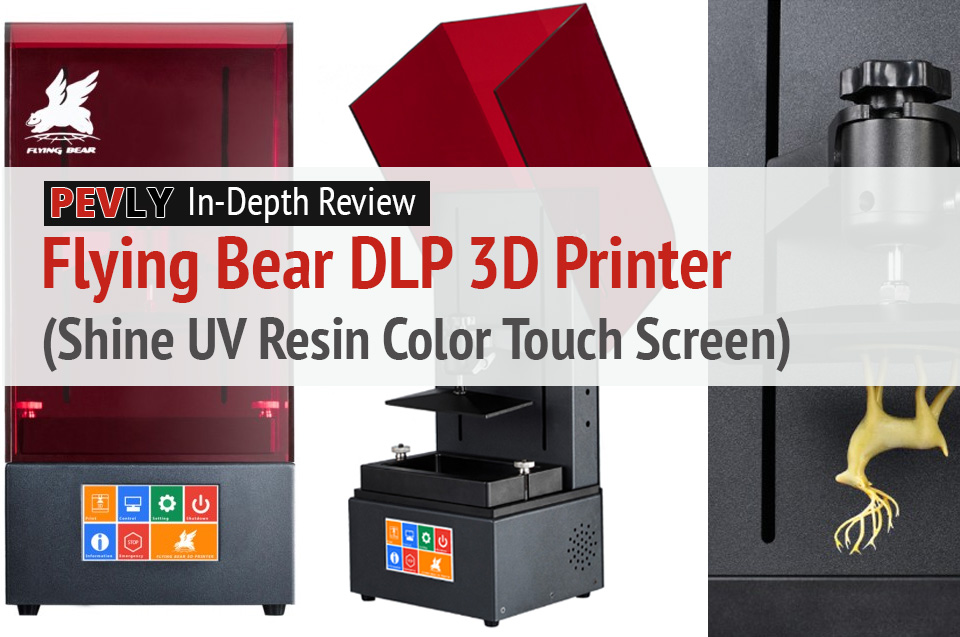
    In-Depth Review: The Flying Bear DLP 3D Printer Shine UV Resin Color Touch Screen.
    The Flying Bear DLP 3D printer’s messy but fun to play with. The detail in the prints is crazy high. Plus it works great and I barely had any problems with it.

    3D printing has been a wonderful hobby. The kids like it, the wife not so much. But she tolerates it because she knows anything positive to take my mind off my chronic pain is a good thing. I can only do so much at a time, but it’s better than nothing.

    Until now it has been Fused Deposition Modelling (FDM, also known as FFF, or fused filament fabrication), which takes spools of plastic and extrudes the plastic at a small width (.4mm most common). This process places them layer upon layer. There are many types of 3D printers that use a variety of materials including metal powder, PLA filament, and liquid resins. Metal printers are industrial-grade and very expensive, and back when I started this hobby the resin printers cost over $2000.

    Resin printers are also known as Stereolithography. That is the process of projecting an image to cure the resin. With DLP 3D printing, a digital light processing(DLP) provides a light source for curing the materials to form the objects through an LCD screen.

    The recent influx of cheaper FDM printers was a sign of  DLPs coming down in price. From over $2000 down to less than $1000. This one is less than $600 USD at the time of writing this review.

    The Flying Bear DLP 3D printer has been a messy but fun printer to play with. The detail in the prints is crazy high. This printer works well and I had very few problems with it.

    Photo of the Flying Bear DLP 3D Printer
    The Flying Bear DLP 3D Printer.

    The Flying Bear DLP 3D Printer: Specifications

    [go_pricing id=”flying-bear-sla-dlp-3d-printer-specs”]

    The printer specs are similar to those of other SLA and DLP printers. I’m assuming the cost of the resin is the reason for the small print size. This printer has a 120 x 68 x 210mm build volume which is quite small in terms of 3D printing, but not for SLAs or DLPs. The board or screen has WiFi built in and is configured through a text file. I’m not sure if it’s my WiFi network or the printer, but I haven’t been able to get it working. It connects to my network but not to any of the software. The 4-inch colour touchscreen is a great interface, much better than the text and turn-dial menu system.

    Unboxing the Newest Flying Bear Shine UV Resin DLP Color Touch Screen 3D Printer

    The printer was well protected in the box with foam shaped to the contours of the printer. The tools were packed inside the printer in their own foam box. This 3D printer comes with a power supply, rubber gloves,  a scraper and an Allen key. It was supposed to come with a bottle of resin but it wasn’t there. I contacted the company and they said they can’t export the resin to some countries. Which I don’t believe, because I can buy resins from any other site.

    Unboxing the Flying Bear DLP 3D Printer
    Flying Bears sends this 3D printer securely packed in foam.
    Unboxing the printer.
    Once you remove the styrofoam, you can unwrap it.
    Photo of the Flying Bear Shine UV DLP Resin 3D printer in pristine condition.
    The Flying Bear Shine UV DLP Resin 3D printer in pristine condition.
    The Photo of the Flying Bear DLP 3D Printer - front view.
    A frontal view of the new Flying Bear DLP 3D printer.
    Photo of Flying Bear Shine with the User Manual.
    Lift the cover to finish unpacking the printer. The Flying Bear Shine comes with a user manual.
    Photo with a rear view of the printer.
    A rear view of the printer.

    Printer Navigation

    The touchscreen is a very nice full-color display. The main screen has a seven-button layout. Three of those are basic commands. You can click the others to display screens with controls, settings, and information.

    Photo of first set of options on the printer's LCD screen.
    The first screen displays a menu with your options for printing, controls, and settings, shutting the printer down, displaying printer info, stopping a print job, and information about the company.

    The first button brings you to the Print screen. To prevent accidental starts, you first have to confirm that you want to print.

    Screen cap with printer options.
    When you’re about to print, this screen shows you the file you’ve selected and tells you if the printer’s ready to print.

    The Control button takes you to a screen where you can do things like adjust the axis and turn the LED on or off.

    This screen lets you set the controls before printing.
    Here, you can choose from more options – or stop the printer if you need to.

    Next is the Settings screen. The display consists of two files. The first is the sysconf (system configuration) which I won’t mess with. The other is the wificonf where you can enter two lines; your WiFi SSID and the password.

    Screen shot with printer's sysconfig and wifi connection options.
    Here you can add your WiFi connection and password to connect the printer to your network.

    When you click the (for info) option, the following screen appears with your IP address, screen mode, and other information.  like the IP address for your network.

    The i (info) option displays a screen with your IP address, screen mode, and more.
    When you click the i option, information about your network and the printer appears.

    The fifth button simply powers down the machine. The next is the emergency stop. This isn’t for stopping the print, it’s to stop the homing if there is a problem. To stop the print there is a stop button on the print screen.

    Last is the Company info screen.

    Company Info screen for Flying Bear printers.
    This screen tells you the model name (Flying Bear Shine), the tech support email, and other information in case you need help.

    Print Quality

    I expected the quality of this printer to be awesome, but it is better than I expected. I have seen many prints online and have wanted an SLA or DLP printer for a long time. It is only recently that companies like Flyingbear released DLP printers cheap enough for everybody. On FDM prints the .1 layer height has been considered high quality. On the DLP as well as the SLA, .1 is considered low quality and .025 is high quality. At those resolutions the layer lines are almost invisible.

    Print of the Eiffel Tower

    The first print I wanted to do was the Eiffel Tower. I have always liked this model and it’s usually one that is done when showing off a DLP or SLA printer. It printed very well but I messed up the post-processing. I dipped it in alcohol then put it in the sun. The problem is that resin that remained between the parts has left a thin film of resin that hardened there.

    Photo of printout of Eiffel Tower: Front view.
    Printout of Eiffel Tower: Front view.
    Second photo of Eiffel Tower printout - overhead view.
    Eiffel Tower printout with an overhead view.
    Photo of Eiffel Tower 3D printout with closeup of the top.
    Eiffel Tower 3D printout with a closeup of the top.
    Photo of Eiffel Tower 3D printout with closeup of the bottom.
    Eiffel Tower 3D printout with a closeup of the bottom.

    Print of a Medieval Castle

    Another model I love that is popular for showing the detail your printer can print is a castle on a hill with lots of tiny trees. And if you look at the image of the bottom you will see another mistake I made. Putting it in the sun in the window made it stick to the wood a bit and pulled off a bit of the finish.

    Photo of medieval castle front view.
    Print of medieval castle with trees.
    Photo of melted part of medieval castle.
    This part of the castle was too close to a sunny window.
    Detail of trees surrounding medieval castle.
    Closeup of trees from medieval castle print.
    Photo of medieval castle - front view.
    Print of medieval castle from the front.

    Print of a Green Lantern Ring

    Being a DC comic fan I, of course, had to print a Green Lantern ring. It was my first attempt at adding manual supports. My supports stuck too well, and I had to cut them off the ring.

    Green Lantern ring 1 - front view

    Green Lantern ring 2 - side view

    Green Lantern ring 3 - rear view

    Prints of Flash and Superman Rings

    After that, I thought I would give the Flash and Superman rings a try. I tried them by placing them face down on the build plate. The problem with that is the liquid pools on the ring – so it cures as it cures.

    Failed print of Superman rings

    Failed print of Superman rings

    When I purchased the resin I chose green for the Green Lantern ring and Kryptonite. Superman is my favorite of all the comic book heroes so of course I needed to print some kryptonite. The giant Lego kryptonite was a great option.

    Kruptonite 3 - front view - closeup

    Kruptonite 3 - front view - closeup

    Print of Superman’s Fortress of Solitude

    I found this cute little model of Superman’s Fortress of Solitude. It should be printed in white or clear resin, but I only have green for now.

    Fortress pring 1 - front view

    Fortress print 2

    fortress 3 - overhead view - closeup

    Print of Skull Dice.

    My last model is of the skull dice. It didn’t work. I suspect it was because there is no drainage, or the resin isn’t clear enough to see it.

    Skull Dice

    Skull Dice

    Software

    DLP and SLA slicing software is different from FDM slicing software. The company gives out the program called “FLYINGBEAR-Shine slicer” and “Creation workshop”. I’m not sure if it’s developed in house or if it’s a derivative of an open source software.

    The supports are different on DLP printers and have to be added through third party software such as Autodesk Meshmixer. The included slicer works great and odd times it will connect through FTP to the printer over the network. You can then upload prints to do on the printer. The Creation Workshop is another slicer that looks good but compared to the Flyingbear one, overcly omplicated. I stuck with the Flyingbear one because it worked most of the time. That, and the slicing time for the Creation Workshop takes a lot more time. Slicing creates an image for every layer, and then the printer prints each layer all at once where FDM uses G-code. The G-Code is just commands for the motors to move the tool-head line by line.

    Printer software display - Eiffel Tower printout Printer software

    Printer software

    Printed Tools

    There are no “upgrades” or “modifications” for this printer, but there are tools to print and use. Although, you need an FDM printer to print these.

    The first and the one I use the most is this lid to keep the resin-covered when not in use. This is one I designed myself in Fusion 360.

    Vat cover
    Vat cover.

    Next is a drain tray to let the build plate drip the resin in the tray. I found it faster and easier to use the scraper that came with the printer, and to push it off the build plate.

    SLA printer drip tray.

    PROS

    • High accuracy
    • Strong material
    • Tinted cover to see how the print is going
    • Big bright touchscreen controls
    • Easy to learn
    • WiFi uploading
    • 2K LCD with resolution up to 2550 x 1440
    • Z-Axis adopts Ball Screw to improve printing accuracy and stability

    CONS

    • Glitchy WiFi
    • Small build volume
    • Supports are difficult
    • Messy post-processing
    • Needs lots of room for baths and tools.

    Evaluation

    People online who have DLP printers say these are very messy. I now actually know how messy it really is. You need more space than with FDM printers, despite the printer being smaller. You need room for an alcohol bath and paper towels and a soapy water bath. It’s a lot, but worth it.

    I keep the water and alcohol in Tupperware containers that seal airtight. DLP printers are a great idea if you want to print figures or anything you want printed with super fine detail and almost no layer lines. It has a high precision Z-axis ball screw. If the WiFi would work at all times it’d be that much better, and it could be so for you.

    I can’t wait to see DLP become mainstream. That will happen when the cost of resin gets lower as the cost of printers did. It will happen just like it did for filament and FDM printing.

    Types of resins aren’t as clear as FDM filaments. The Wanhao resin I purchased is made for Wanhao SLA printers. There is no smell but it’s good advice to keep the room well ventilated, and using gloves in handling.

    resin

    Before I had an DLP printer, I would advise against buying one as your first printer. Now I would say, go for it. Yeah, the resin cost more but it won’t be long before its price drops. Even without the promised resin, the Flyingbear shine is a great choice for a great price.

    You May Also Like…

  • The Tevo Michelangelo 3D Printer: A Review
    The Tevo Michelangelo 3D Printer: A Review

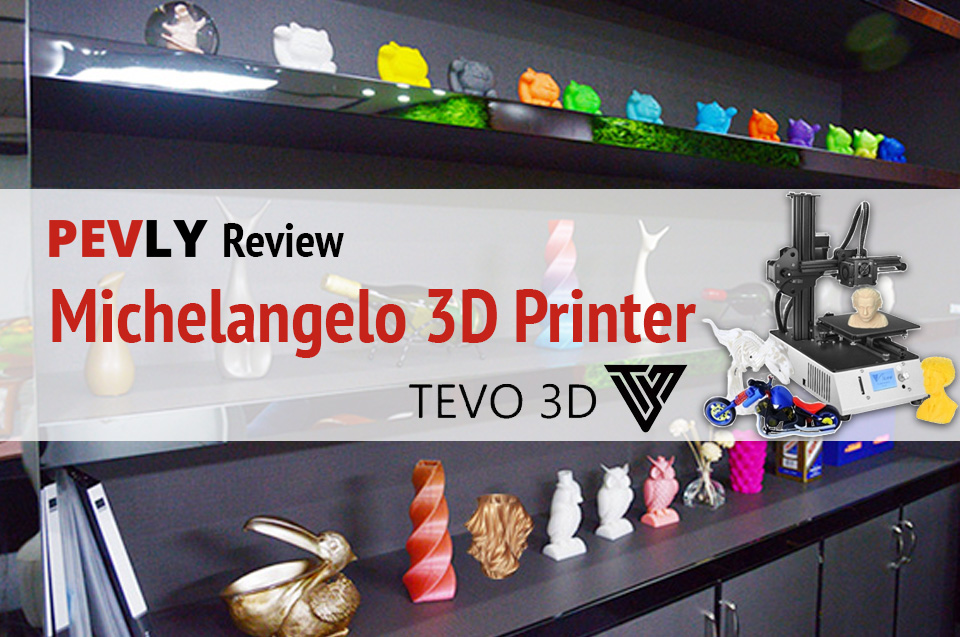
    Pevly review: Tevo Michelangelo 3D printer with samples of amazing things you can print.
    If you have limited space and you want a 3D printer you can’t go wrong with the Tevo Michelangelo. It’s lightweight and compact, yet very robust.

    I’m the type of person who thinks BIGGER is always better. When it comes to 3D printing I select mostly large volume printers. Then I got this little printer sent to me from Tevo for a review. The Michelangelo has a build volume of 150X150X150. This little guy has changed my mind!

    The great thing is that most models online are sliced up to print on smaller machines. You also have the option to scale the models down or in some cases, you can slice the prints into smaller parts on your own with the Meshmixer program which is free and easy to learn. 

    The Tevo Michelangelo 3D Printer: Specifications

    [go_pricing id=”tevo-michelangelo”]

    Unboxing

    Unboxing this printer was a breeze. It comes fully assembled, except the four feet which could easily be done at the factory. Either way it’s simple to install them on your own.

    Photo: Tevo Michelangelo 3D printer - assembly.
    The Tevo Michelangelo 3D Printer comes fully assembled, but if you ever need to take it apart, it’s easy to reassemble yourself.
    Photo: Tevo Michelangelo in the box.
    Unpacking the box.
    Photo: Tevo Michelangelo components with assembly manual.
    The Tevo Michelangelo comes fully assembled, but has an assembly manual in case you need it.

    Unpacking the Michelangelo.

    Unpacking the Michelangelo.

    SD Card

    The SD card contains 2 sample GCODE files as well as the manual in pdf format. It also contains a copy of the Repetier-host software.

    Software

    The Repetier-Host software on the SD card is not my favourite program to use with printers. The software just “hosts” a slicer engine. A slicer is a program that slices the 3D object into layers, then turns it into instructions the printer can understand. If you need a free program then I would recommend Slic3r or Cura, but if you can afford it I would recommend Simplify3D.

    Print Quality

    The Michelangelo doesn’t come with a heated bed. This limits the types of filaments you can print with. Basically, it limits you to PLA and TPU. PLA is the most common filament and TPU is a flexible filament. The reason for this is because PLA and TPU don’t require heat to keep it from curling up as it cools down.

    Photo: Tevo Michelangelo printer on desk.
    The Tevo Michelangelo 3D printer’s footprint’s barely larger than a regular inkjet. 
    Michelangelo printer bed with Magigoo adhesive applied.
    Before printing, I applied Magigoo to the printer bed. This adhesive keeps 3D objects in place while being printed, then allows easy removal. Magigoo lasts for over 100 prints, plus it’s odourless and safe to use. Better yet, you can easily wipe it off with water.

    Tevo Michelangelo printer unpacked and ready to go.

    Tevo Michelangelo LCD monitor..
    This 3D printer also has an LCD monitor so you can check the status of your print job.

    The Tevo Michelangelo 3D Printer with PLA Filament

    This printer got off to a bit of a rocky start. I printed the included Wave test GCODE file it printed well until about 90% of the way up. That is when the layers started to shift on the X-axis.

    WaveTest G-Code 3D printout.
    This Wavetest printout out great until it shifted on its X-axis when the file was 90 percent done.

    Closeup of the wave test.

    I printed a couple of dinosaurs for a friend and a couple of Benchis (benchmarks). They have a lot of layer shifting and artifacts. I wasn’t sure what was going on. After some troubleshooting, I discovered the small grub screws that hold the pulley to the motor shaft was loose on the X-axis.

    Tevo Michelangelo - PLA filaments. T-Rexes.
    At first, the T-Rexes has some layer shifting and artifacts while printing on the Tevo Michelangelo.

    Melting T-Rex

    print waste.
    There’s also more waste than I would like.
    Pink "Benchi" tugboat with printing issues.
    The Benchi (benchmarks) tugboats had the same layer shifting and artifacts until I figured out how to fix it.

    pink benchi tugboat

    Yellow benchi tugboat bottom with letters.

    Yellow "Benchi" tugboat with printing issues.

    Last yellow "benchi" tugboat from side close up.

    After tightening those screws I printed a new Benchi, a dinosaur, and a statue of Captain America. They came out way better than I expected. I got the same quality I get from the Tevo Tornado and JGAurora A5 which is saying something.

    Photo: Yellow benchi tugboat with printer issues fixed. Side view.
    Yellow Benchi tugboat with printer issue fixed.

    Photo: Yellow benchi tugboat with printer issues fixed. View of bottom with lettering.

    Photo: Yellow "benchi" tugboat with printer issues fixed. Side view.

    Photo: Pink T-Rex 3D printout with printing issue fixed.
    T-Rex 3D printout with printing issue fixed.

    Pink T-Rex - other side view with printer issues fixed.

    3D printout - Tevo Michelangelo - blue Captain America.
    Captain America 3D printout on Tevo Michelangelo with printing issue fixed – closeup view.
    Blue Captain America 3D printout on Tevo Michelangelo.
    3D printout of Captain America with the full-length view.

    The smaller build volume doesn’t keep this printer from practical printing. I purchased a new set of jewelers screwdrivers for my workbench. I plan to use them quite often and don’t want to get out the case and open it then put them back when I’m done. So I opened Fusion 360 which is a free computer aided drawing (CAD) for students and Hobbyists.

    Then I designed the cool little holder that I can screw to the side of the desk and have easy access to the screwdrivers. It printed easy and is plenty strong enough to hold them and not break if it gets knocked by something or someone.

    3D printout with blue set of jeweler screwdrivers.
    The Tevo Michelangelo also printed out the handles and holder for these jeweler screwdrivers.
    Holder for jewelers screwdrivers.
    Blue holder for the jewelers screwdrivers.

    I love playing in Fusion 360. There are plenty of free YouTube or other online tutorials to get you started. There are also plenty of advanced tutorials. I get a sense of accomplishment when I print something I came up with in my head.

    The last PLA print is the Moon City from Thingiverse.com. This is a beautiful model and the detail is amazing. The Michelangelo printed it beautifully and got all the details perfectly.

    Red 3d printout of Moon City from Thingiverse.com.
    Red Tevo Michelangelo 3D printout of Moon City from Thingiverse.com (front).


    Photo - Red printout of Moon City (rear view)
    Red Tevo Michelangelo 3D printout of Moon City from Thingiverse.com (back).

    (For more on the above 3D printouts, see my review of Neat PLA Filament.)

    The Tevo Michelangelo 3D Printer with TPU Filament

    Flexible filaments are good for things like phone cases and RC tires. I usually print soft toys for the kids. My friend asked me to print some dinosaurs for a 3-year-old. I chose this low polygon dino because it would print well in TPU. The Michelangelo has the same extruder as the Tevo Tornado so I knew it would print TPU without any issues.

    Tevo Michelangelo 3D Printer -- TPU filament -- green Godzilla - 3/4 view
    Green Godzilla, with TPU filament and a Tevo Michelangelo 3D Printer.

    Tevo Michelangelo 3D Printer -- TPU filament -- green Godzilla - other side

    Tevo Michelangelo 3D Printer -- TPU filament -- green Godzilla -- being held.

    Tevo Michelangelo 3D Printer -- TPU filament -- green Godzilla

    Tevo Michelangelo 3D Printer -- TPU filament -- green Godzilla

    Video with the Tevo Michelangelo Printing

    Modifications

    The Michelangelo doesn’t need any modifications. The one I did was a spool holder that mounts to the top of the Z extrusion. You can see it on Thingiverse.

    Photo of Tevo Michelangelo spool holder on Thingiverse.
    Tevo Michelangelo spool holder on Thingiverse.

    Pros and Cons

    Pros

    • This printer is among the best prints I have seen yet! I am blown away by how well it prints.
    • The Titan extruder works great and has little to no space after the gear. This makes printing with flexible filaments much better.
    • The extruded aluminum frame uses wheels instead of bearing on smooth rods. Rods can bend easily and bearings wear out.
    • Comes pre-built
    • Tevo has done a great job making their printers look nice as well as print nice. The logos and boot screens have been well executed.

    Cons

    • No spool holder. Hard to print without a spool holder, you have to make a makeshift one until you can print one.
    • No heated bed. This is a con but most only print with PLA anyway.

    FINAL JUDGMENT

    If you have limited space and you want a 3D printer you can’t go wrong with the Tevo Michelangelo. It is easy to move around because it’s light and all one piece. The printer doesn’t come with a spool holder but it’s simple to jerry-rig something to print one. The front access SD card is the best I have seen on any printer I have owned to date. They usually have them on the side back or behind the LCD screen.

    You May Also Like…

  • NEAT PLA Filament (In-Depth Review)

    NEAT PLA Filament (In-Depth Review)

    Photo of NEAT PLA Filament color samples.
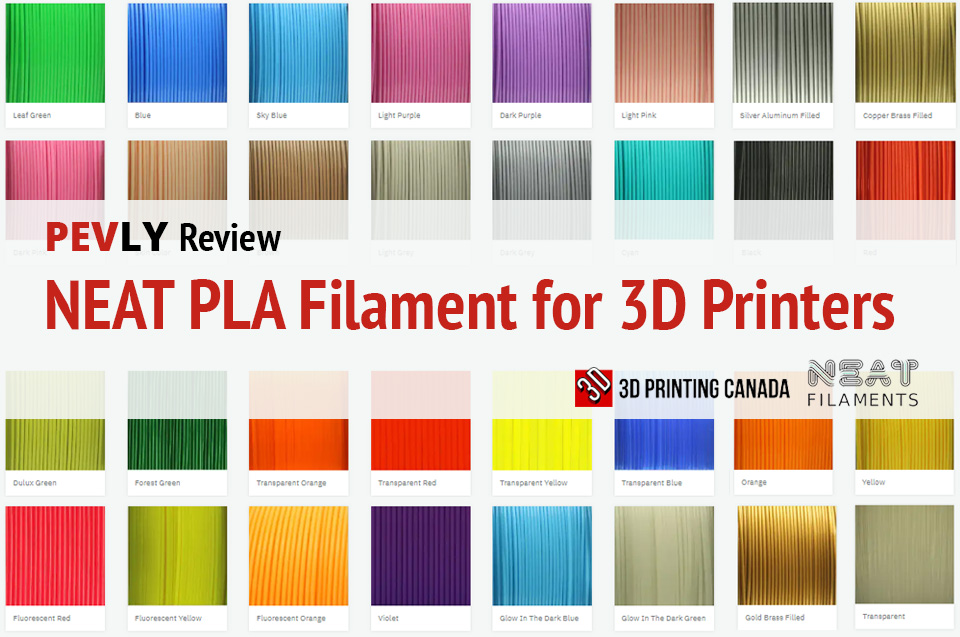
    Not only does NEAT PLA filament get beautiful results from your 3D printer, but they’re also earth-friendly and biodegradable.

    Reviewing filament for 3D printers has opened my eyes to all the possibilities of PLA (Polylactic Acid) filaments. Typically I would just order whatever is cheap and be done with it. Thanks to 3D Printing Canada I found there are much better products available in the same price range. For instance, the other PLA filament I have tried have had issues with supports sticking way too much, even with lower temperatures. I won’t name these companies or sellers.

    I would definitely recommend 3D printing Canada for the filaments I have reviewed so far.

    This filament was sent to me to review and I received no other payment. This is my opinion only and I ask that you try it and form your own opinion. I believe you would come to the same or similar conclusion of your own.

    This review is of the Neat brand PLA. This filament is in the $25 CDN price range which is a great price. Their shipping is a flat $10 fee or free for orders over $120 CDN. So for 5 rolls, you get free shipping and you will be well stocked. Depending on how often you print of course. Haha, I go through a lot of filament for personal use and for printer reviews.

    Photo of Neat PLA Filaments after opening the box.
    Neat PLA Filaments: Unpacking the box.
    Neat PLA filaments - Blue, red, green, and pink.
    Photo of Neat PLA filaments with blue, red, green, and pink. PLA stands for Polylactic Acid, a biodegradable, earth-friendly material made from plants.
    <EM><SMALL>Close-up photo of spool of green 3D printer filament being taken out of the box.</SMALL></EM>
    Green 3d printer PLA filament.
    Close-up photo of label on Neat Filaments.
    The label shows that Neat PLA Filaments comply with standards set by the Restriction of Hazardous Substances Directive (RoHS). Neato PLA filaments are non-toxic, odorless, eco-friendly, and also take less energy to process.

    OK, let’s get to the good stuff. I have a friend who asked me if I could make some dinosaurs for his friend’s 3-year-old kid who loves dinosaurs.

    I started with the pink. My first print was a test print on the Tevo Michelangelo. I review printers as well as filaments and other technical Items. It started rough with strange shifts in the prints. I printed a couple of dinosaurs and wound up with some odd artifacts in the prints. The arms and legs have overhangs.

    Pink tugboat.
    The pink tugboat has some issues.
    Pink tugboat printed with Neat PLA Filament.
    Photo: Pink Tugboat with NEAT PLA Filament for 3D printers.
    Photo of pink Tyrannosaurus Rex.
    Photo: First attempt at a pink Tyrannosaurus Rex.
    Photo of two pink Tyrannosaurus Rex.
    Photo: Two pink Tyrannosaurus Rex dinosaurs straight off the 3D printer (with NEAT PLA filament). The arms and legs have overhangs.
    Photo of waste products from 3D printer.
    Photo: Waste products left from the 3D printing process.
    Photo of a shape printed with pink Neat PDA Filament.

    Next, I printed the ever popular Benchi and the shifts were very obvious. It showed me the shift was in the X axis. After finding the grub screws loose on the X motor pulley I printed a new T-Rex. That one turned out perfectly. Zero issues at all. This little printer prints awesomely and a review is coming soon. Which brings me to a point. When reviewing filaments and printers you need to know what is the fault of the printer, what is the fault of the filament and what is the fault of the software.

    Successful attempt at printing out the T-Rex.
    After an adjustment, the T-Rex printed out perfectly,
    A flawless T-Rex
    The other side of the above T-Rex.

    I printed a pixel dinosaur and an articulated triceratops in the red filament. The pixel one was a little under extruded but that is the fault of the printer and not the filament.

    Photo: Red T-Rex.
    This pixel T-Rex is a little under-extruded. But that’s the fault of the printer, not the NEAT PLA filament.
    red triceratops - side view.
    Red Triceratops – side view.
    red triceratops - three quarters view.
    Red triceratops – three-quarters view.


    red articulated triceratops
    Articulated red triceratops from a different angle.
    Photo of red triceratops 3D printout.
    Articulated triceratops, printed with the red NEAT PLA filament.
    The red pixel T-Rex from a different angle.
    Red pixel T-Rex from a different angle.

    Toy dinosaurs are great but the Moon city is tremendous. Jukka Seppänen created a tiny city in a tiny moon. I have a thing for space. Stars, planets and other celestial bodies are fascinating. This model is a quarter shape moon with the city on the inside like a shell. The detail looks like Middle East architecture with a bit of modern and future tech.

    Photo of Moon City 3D printout.
    “Moon City” by Jukka Seppänen. Printed with NEAT PLA filament on a Tevo Michelangelo printer.
    Photo of Moon City closeup in greater detail.
    Moon City – closeup in greater detail.
    Photo of Moon City 3D printout - from behind.
    Moon City – from behind.
    Photo of Moon City at a different angle.
    A quarter-shape moon with the city on the inside like a shell.

    A couple of blue dinosaurs to add to the set. You can find almost anything you’d want to print on the two big free model sites: ThingIVerse.Com and MyMiniFactory.com. If not you can probably find it on one of the pay sites. There is a site that you can buy models for RC airplanes which you can actually fly. I’m looking forward to trying a 3D printed RC plane.

    Photo: 3D printout of a blue triceratops.
    3D printout of a blue triceratops at a front, three-quarters angle.
    Photo of 3D printout of blue stegosaurus. - front view.
    3D printout of a blue stegosaurus, front view.
    Photo of 3D printout of blue stegosaurus.
    3D printout of a blue stegosaurus lying down, from the side..
    Photo blue triceratops.
    View of blue triceratops from another angle.
    Photo: Blue triceratops from the rear.
    Blue triceratops at a rear, three-quarters angle.

    Next, a Captain America figure from the Avengers Infinity War movie and a very nerdy Star Wars clock. 3D printing is a nerd and geeks dream come true. I painted the minute and hour hands in red and green to represent lightsabers. I will probably design my own hands the shape of lightsabers and print them in the proper colours as soon as I have the time.

    3D printout of Captain America - front three-quarters angle.
    Captain America from a front three-quarters angle.

    3D printout: Nerdy Star Wars clock.
    3D Printout with a Star Wars clock.

    3D printing is more than just printing trinkets and cosplay. It also has it’s practical uses. For instance, I purchased a new set of jewelry screwdrivers for my workbench. I plan to use them quite often and don’t want to get out the case and open it then put them back when I’m done. So I opened Fusion 360 which is a free computer aided drawing (CAD) for students and hobbyists. Then I designed the cool little holder that I can screw to the side of the desk and have easy access to the screwdrivers. It printed easy and is plenty strong enough to hold them and not break if it gets knocked by something or someone.

    Photo: Set of screwdrivers for workbench.
    A set of screwdrivers for my workbench, complete with a base.

    side of the screw driver holder.
    back of the screw driver holder.
    Photo of set of screwdrivers
    The base for storing the set of screwdrivers.

    Photo: Set of screwdrivers for workbench.
    A set of screwdrivers for my workbench, complete with a base.

    I love playing in Fusion 360. There are plenty of free YouTube or other online tutorials to get you started. There are also plenty of advanced tutorials. I get a sense of accomplishment when I print something I came up with in my head.

    The fourth colour I chose to review was green. I have been wanting to print a cool Hulk statue since I started 3D printing. So I went to www.thingiverse.com to find the perfect Hulk statue. The one I chose is 300mm(30cm) tall. It used almost the entire roll of filament. The tolerances were not set right so the pieces need to be sanded a bit to assemble it. It uses block extrusions and cavities to hold the parts together.

    This Hulk shows the level of detail that can be accomplished with the right printer and NEAT PLA filament.

    Photo of Hulk action figure printed on TEVA Michelangelo 3D printer with green filament.
    Hulk action figure printed with green NEAT PLA filament on TEVA Michelangelo 3D printer.
    Photo of green 3D printout of the Incredible Hulk's head and upper body - front.
    The Tevo Michelangelo printer with NEAT PLA filament renders the Incredible Hulk in great detail.

    Detail - Hulk's arm. Detail - Hulk's arm. Detail - Hulk's arm. Detail - Hulk's arm. Detail - Hulk's arm. Detail - Hulk's arm. Detail - Hulk's leg. Detail - Hulk's leg. Detail - Hulk's leg. Detail - Hulk's leg. Detail - Hulk's leg. Detail - Hulk's leg.

    Detail - Hulk's leg.
    Detail: Hulk’s right leg, facing front.
    hoto: Printout: Hulk's lower body and legs, back.
    Lower body with connectors for legs (rear view).
    Photo: Printout: Hulk's lower body and legs, front-facing.
    Lower body with connectors for legs.
    Photo of green 3D printout of Hulk's head and upper body - back.
    The Incredible Hulk – upper body – back.

    One thing about 3D printing is the waste of plastic. There is often a waste when it comes to supports. If there is a more than 45% overhang then you need to add supports so the filament doesn’t ooze down onto the build plate. The other waste of plastic is failed prints. Many times you will have a print start off well and part way through the nozzle will catch a curled up part and pulls it off the platform. You can count on probably 20% waste depending on what you print most.

    Photo of wasted plastic from 3D printer.
    Unfortunately, 3D printers leave a lot of waste.

    Again 3D Printing Canada has impressed me with another spectacular filament. The only downside is the supports sticking to well to the prints. This can be adjusted within the supports settings but that only gets you so far. Being mid price range the Neat filament is definitely worth the price of admission.


  • 3D Printing Canada Select PLA Filament Review
    3D Printing Canada Select PLA Filament Review

    3D Printing Canada

    With the sudden popularity in 3D printing there has been a race to create the perfect plastic material. Back when it was starting to go public there was only one big type and that was ABS (Acrylonitrile Butadiene Styrene), which is strong but hard to print with because of its shrinking factor. As it is printing, any cool air makes ABS curl up on the corners making it hard to keep stuck to the bed.

    Then came PLA (Polylactic Acid) which doesn’t shrink as bad and is much easier to print with. The best part of PLA is its biodegradability. Recently there has been a surge of newly created PLA filaments: PLA Plus, Advance PLA and now Select PLA.

    I recently reviewed PETG (Polyethylene terephthalate with glycol), TPU (Thermoplastic polyurethane) and Wood filament for 3D Printing Canada, you can read that review here. Since I liked that filament so much, they’ve sent me their new Select PLA.

    PLA typically prints at 180-205 °C. Select PLA prints best at 215 °C. Before 3D printing got popular it was hard to find cheap filament that was also good. As the industry grows the filament is getting better and better. Back then the cheaper filament cost around $60 for the good stuff. Now the $30 rolls is the good stuff and the value filament is around $15. And the $15 rolls are good enough for everyday use, although I haven’t tried the value filaments from 3D Printing Canada.

    Select PLA is the filament you want for special items like display pieces, or if you sell prints to the public. For the price it’s good for everyday items as well. The value filament is probably something you would use for functional prototyping. I haven’t tried the value filaments yet, but I will be giving those a try.

    3D Printing Canada gave me 4 colours to try. The first one I tried was White. First I printed a tolerance test to judge the printers accuracy. While I am reviewing the filament, I am also reviewing a 3D printer named JGAurora A5. The test showed me that the printer and filament can print articulate parts with a .2mm tolerance. That is a very good result. It means, if you want to print a hinge you would need to have a minimum of .2mm separation between the parts.

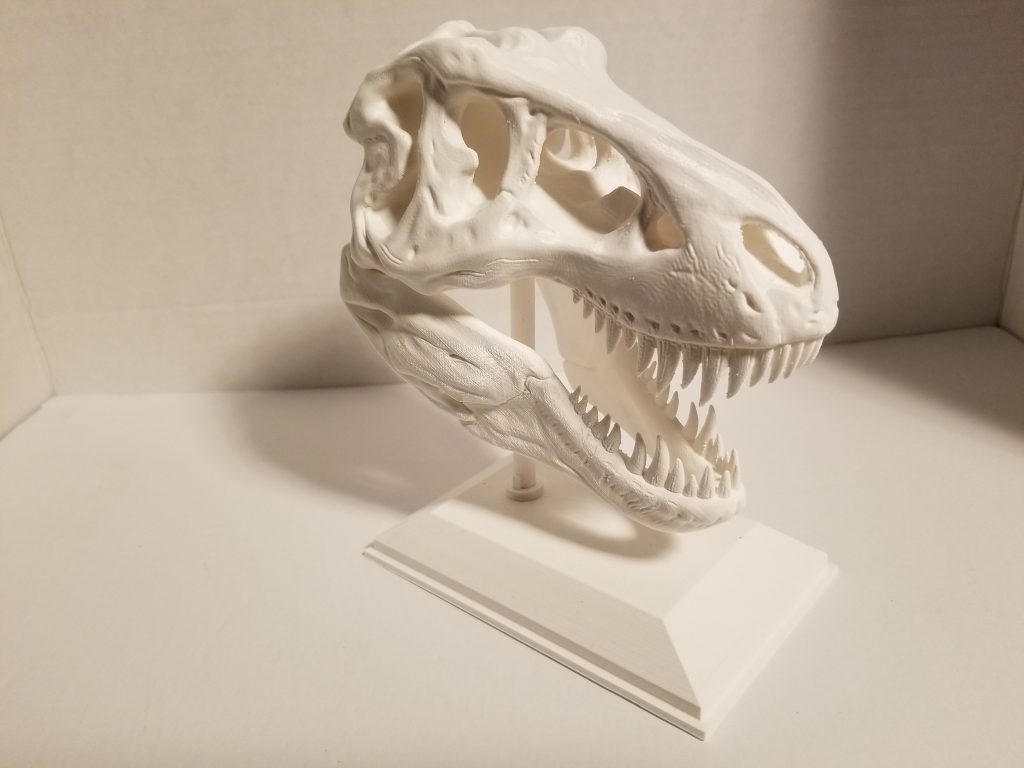
    Then I printed something I have been wanting to print for a long time: the Skull of the Tyrannosaurus Rex. Some day I will print a large-scale model of the entire T-Rex. The skull came out great and it is displayed proudly in my office display cabinet. Being a nerd, or geek, I like interesting things like space, dinosaurs, and fantasy stuff like super heroes!

    Next I printed a simple toolbox that attaches to the side of my printer. The prints really came out beautifully; I am so impressed with this filament – as well as the printer!

    After that impressive Dino skull I wanted to try something else that shows incredible details. Many nights I look up at the moon in awe. It’s a massive rock spinning around our planet and interfering with such things as our ocean tides and our weather. As you can see it is as impressive as the T-Rex Skull, and much more detailed. Links to these files are below.

    The Orange filament has a nice colour but I’m not sure what to print with it. The colour of the filament doesn’t matter because it’s easy to paint. I recommend sanding them down and using a filler primer to fill in the layer lines. The first orange print was the ever-popular 3DBenchy, the little boat that was created to be a benchmark test; it printed great.

    I printed an articulate horse for my daughter because she loves horses. It has tiny hinges between each piece to make it flexible. That is one of the greatest things about 3D printing, you can make things that connect and move, all in one piece. To show the accuracy I also printed a 20mm cube. As you can see, all those are very close to 20mm. Accuracy comes from both the printer and the filament.

    I love printing things for my 11 year old. She loves to display these proudly in her section of my display cabinet. We share the office, and she has her own special desk. Another hobby of hers is drawing, so I decided to make her a drawing robot. It is still in the works, but getting close. It will have WiFi / Bluetooth connectivity.

    Using Yellow filament I added a mix of colours to the drawing robot. The yellow prints as good as the other colours. I promised my son I would print him a plant holder. He has a love for plants since his school coop placement in a flower store. Here in Canada students in high school get placed in a job, for experience and a high school credit. Because of his interest in gaming I printed a Mario game block he can paint and use to grow plants in. I had to drill holes for drainage.

    The last color I tried was black. Black and white are useful for lots of things. Me, when I see black – I think of Batman! I printed a small pair of toy grippers for the kids and a bust of Batman for myself.

    I’m very happy to have a Canadian filament supplier that is pricing their filament competitively. For far too long we have been paying way more than people in the US. Ordering from the US means we pay a lot for shipping and duties. So the Canadian suppliers have been charging a minimum of $30 for the cheapest filaments. To get this quality at $30 CDN is a good thing. I can’t wait to try the value filament which is currently on sale for $15 CDN. The electronics shop in Ottawa charges $30 for 1/2 kg rolls of cheap filament that doesn’t print well at all.

    The Select PLA filament prints at 215°C and bonds very well. It is nice and strong for functional parts that you prototype or download.

    These are my opinions and you should form your own, by trying the product or doing more research. But this filament is well worth the price. They also offer free Canada wide shipping for purchases over $120 or $10 flat rate below. My friends and I buy together in bulk to save the shipping costs.

    Links to everything I’ve printed:

    3DBenchy

    Drawing Robot

    Batman Bust

    Moon

    T-Rex

    Mario Cube

    Horse, gripper and toolbox  (I can’t seem to find these items…)

    But there are plenty of things to print, on Thingiverse.com

  • 3D Printing Canada Filament Review – Wood, TPU, PETG
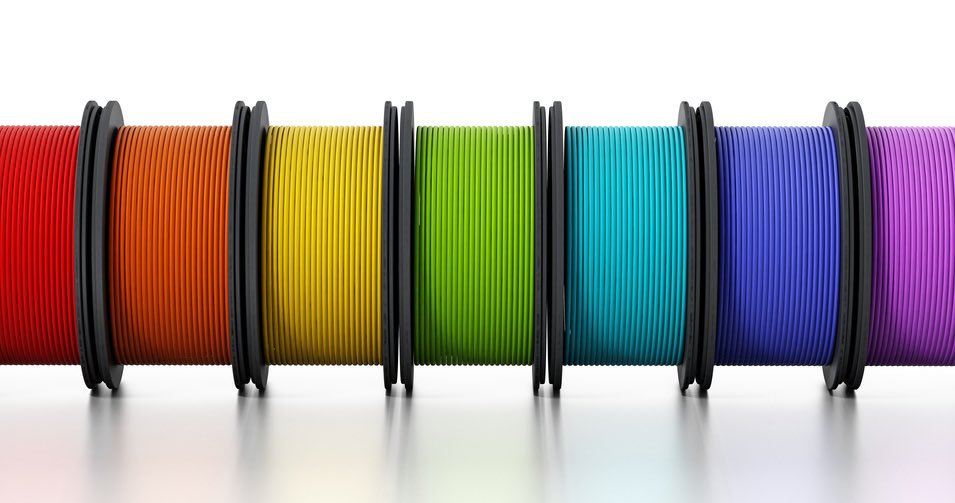
    3D Printing Canada Filament Review – Wood, TPU, PETG

    I’ve been very interested in 3D printing for a few years now. I enjoy reviewing printers because it gives me a chance to see new printing technology, but also lets me see how companies differ on the same technology. For instance the different types of hotends. I have used many different types and brands of filament but never gave it much thought; to me it was just a consumable. Sure there are different colors, but there are generally three main types used: ABS, PLA and PETG. Each filament comes with its own set of strengths and weaknesses. For instance, ABS is strong and withstands higher temperatures but it’s very hard to print because it shrinks as it cools and pops off the build plate. You need an enclosed printer to print ABS. PLA is easier to print with less shrinkage but isn’t as strong as ABS.

    So when asked if I wanted to review filaments from 3D Printing Canada I at first said, no thanks. Then, after giving it some thought, I figured why not try filaments outside my wheel house. So I chose one that I haven’t used, one that I have only used once before, and one that I have used a few times with mixed results. These are, wood, TPU and PETG, in that order. 3D Printing Canada has not paid me in any way to write this review, they provided the filament for free, and that’s all.

    Wood

    Wood filament is very cool but costs a bit more, and has a limited use case. So far I have only seen people print vases and Groot from the Guardians of the Galaxy movies. It is PLA with infused wood fibers, however it is hard on the brass nozzles commonly used on 3D printers (The nozzles are very cheap). I received the filament last week and asked on a 3D printing Facebook group what I should print. Of course, they said Groot and vases. As I wanted to be a bit different, I decided to go with a wooden shelf with a secret drawer.

    The first print I started didn’t go too well. Not the fault of the filament but the printer itself. I started and it was going great, but when I went up stairs the Y axis started missing steps which caused major layer shifts.


    So I increased the current to my Y stepper motor because it was lower then the others, and started the shelf again. This time it printed great. Not perfect, because of a bit of shrinking on one part, but luckily that was the hidden part so not a huge deal.

    The next item I printed was a square mug, and a circle mug.

    Just kidding, that is one mug! Holding this mug in the right or left hand gives you a different perspective. The person who came up with this design must be highly intelligent. The person who made it for people to download and print is Devin at the Make anything Youtube channel. I don’t know if he came up with the idea, but he is smart and has great 3D printing content, you should look him up.

    This being my first time to use wood filament I can’t say it’s better than any other brand. What I can say though is that it is a very good filament and I’m happy to use it. I may try a Groot some day soon.

    Thingiverse – Secret Shelf

    MyMiniFactory – Mug

    [go_pricing id=”anet_a8_5a_5ab1404d0dc88″]

    TPU

    TPU, like wood, has a specific purpose and costs a bit more. I have purchased a roll of SainSmart TPU and used it for my printer reviews in the past. The 3D Printing Canada TPU filament has a softer feel to it. TPU is a rubbery type of filament, good to print things like RC tires and phone cases. It may also have uses for gaskets, rubber dampening parts for vibration control, and other specific use cases. I have no use for it at the moment, so I decided to print soft toys for the kids to play with.

    The first was a MatterHackers mascot Phil A Ment. He is a cute little astronaut. The print that came out was softer than the tiers I printed with the SainSmart TPU. The 3D Printing Canada TPU also printed better. To make your prints stronger, use more outline layers and higher percentage of infill.

    After seeing the astronaut the kids wanted a minion. So off to Thingiverse and MyMiniFactory to find one suitable to print with TPU. I found these two; one with one eye, and one with two eyes. That was to keep track of which was whose (2 year olds are very protective of their toys.) The one with the single eye needed support for the eye since it sticks out. Supports for any other filament are not an issue. TPU supports are hard to remove because they stick so well to the part. It being a tiny bit, I was able to cut these off with a pair of side covers.


    MatterHackers – Phil

    MyMiniFactory – Minion One Eye

    Thingiverse – Minion Two Eyes

    PETG

    PETG was created to be the best of both PLA and ABS. It’s supposed to print with the ease of PLA, and be strong like ABS. In the past I have had mixed results with PETG and wasted a lot on failed prints. So I chose PETG in the hope of getting a good source. Not only was it good, it is located here in Canada and I don’t have to pay duties! My first PETG print was the ABS temp tower with PETG temps. This is two pillars with a bridge across every 60 layers or so. You set the start temperature at the highest, and decrease it by 5 degrees every section of the tower, then you look for the temperature that prints the best, and use it for the prints. Being made for ABS, the temps on the part are not what I used. I went from 250 to 225 and found 235 to be the right temp.

    PETG is used to print parts intended for heavy duty or outside use. For instance, my friend is printing railing mounts for a deck he purchased a while back, since the company is no longer in business to sell parts. I offered to print a couple of mounts, so now he has a good source. The other filament sold in Canada that we tried didn’t have very good PETG. I printed parts for him with this PETG and was pleased with how they turned out. PETG is stringy, so you have to play with retraction setting for every roll, or do a bit of post print clean up.

    Comparing it to the last brand, you can see a difference. (3D Printing Canada on top) Also not noticeable in the image is that 3D Printing Canada prints are a bit shinier.

    Conclusion

    While I was hesitant to review printer filaments, I am very glad that I did. The biggest issue with reviewing filaments is that it can be hard to ascertain what is the fault of the filament and what is the fault of the printer, or even slicer settings. 3D Printing Canada has gained a new customer in me! Additionally, their prices for premium filaments is very fair. I hope you give them a try. I look forward to testing their PLA and PLA+  filaments.

    Happy Printing!